n8n Integration
Render HTML to a pixel-perfect image inside any n8n workflow — no hosted page, no headless browser to manage. The official Rendex community node turns raw markup or a live URL into a PNG, JPEG, WebP, or PDF and hands the result to the next node as binary data, ready to save, upload, or email.
What the Rendex Node Does
Rendex publishes an official n8n community node, n8n-nodes-rendex. It adds a single Rendex node that talks to api.rendex.dev and covers the full rendering surface: render raw HTML to an image, screenshot a live URL, or generate a paginated PDF. The node is marked usable as a tool, so n8n AI Agent nodes can call it directly.
- Render HTML to an image — paste an invoice, OG card, certificate, or email template and get a PNG back. No hosting step in between.
- Screenshot any URL on a schedule or trigger and archive the image to S3, Drive, or a database.
- Generate PDFs from HTML or a URL with configurable page size, margins, orientation, and scale.
- Mint a hosted, auto-caching URL with the new Render Link operation — get a signed image or PDF link to drop straight into an
og:imagetag or<img>embed, no upload step. - Run async or batched jobs for heavy pages or large URL lists, with an optional HMAC-signed webhook on completion.
Quick Setup
Getting from zero to a rendered image takes under five minutes. If you already have an n8n instance and a Rendex key, jump to step 3.
1. Add the Rendex node
Rendex is a Verified Community Node on n8n Cloud. On Cloud, just search “Rendex”in the nodes panel and add it in one click — no manual install. On self-hosted n8n, open Settings → Community Nodes, click Install, and paste the package name:
n8n-nodes-rendex(Self-hosted: accept the community-node warning and confirm.) Once added, the Rendex node is available in the node picker of any workflow.
2. Create a Rendex API credential
Sign in to your dashboard at rendex.dev/login, open API Keys, and click Create Key. The free plan includes 100 renders per month — enough to validate a workflow before upgrading. Copy the key; it looks like rdx_ followed by 22 characters.
Back in n8n, add a new Rendex API credential and paste the key into the API Key field. n8n verifies it live against the /v1/credential-check endpoint, so a green check confirms the key is valid before you build anything. The credential sends the key as a bearer token automatically — you never set headers by hand.
3. Render HTML to an image
Add a Rendex node after any trigger. Set Resource to Screenshot, Operation to Capture, and Source to HTML. Paste your markup into the HTML field — n8n expressions work inline, so you can merge data from earlier nodes:
<!doctype html>
<html>
  <body style="font-family: system-ui; padding: 48px; color: #1a1a1a">
    <h1 style="color: #e2571a">Invoice #{{ $json.invoiceNumber }}</h1>
    <p>Billed to: {{ $json.customerName }}</p>
    <table style="width: 100%; border-collapse: collapse; margin-top: 24px">
      <tr style="border-bottom: 2px solid #e2571a">
        <th style="text-align: left; padding: 8px">Item</th>
        <th style="text-align: right; padding: 8px">Amount</th>
      </tr>
      <tr>
        <td style="padding: 8px">{{ $json.item }}</td>
        <td style="text-align: right; padding: 8px">{{ $json.amount }}</td>
      </tr>
    </table>
  </body>
</html>
Leave Format at png (or switch to pdf for a document), then execute the node.
Markdown & templates: set Source to Markdownto render Markdown to an image or PDF with no CSS — handy for piping an AI node's output straight through. To fill {{placeholders}} from earlier nodes, add a data object and Rendex applies Mustache templating before rendering (HTML or Markdown source). See data templating.
4. Use the rendered output
Capturewrites the rendered image or PDF to the node's binary property — data by default — alongside a JSON metadata object. Wire that binary into any binary-capable node: Write Binary File, Upload to S3, Send Email (as an attachment), HTTP Request (to forward it), or a database node.
Resources & Operations
The Rendex node organizes its work under seven resources. Pick a resource first, then the operation.
| Resource | Operation | What it does |
|---|---|---|
Screenshot | Capture | Synchronous render of a URL or raw HTML. Returns the image or PDF in the node's binary property plus a JSON metadata object. Best for most workflows. |
Screenshot | Capture Async | Submits a job and returns immediately with a jobId. An optional Webhook URL receives an HMAC-signed payload when the capture completes. Best for heavy pages. |
Screenshot | Render Link | Returns a hosted, signed, auto-caching image or PDF URL instead of binary. The asset renders once on first hit, then serves an edge-cached copy. Best for og:image tags and <img> embeds. |
Document | Extract | Pulls clean reader-mode Markdown, JSON, or article HTML from a URL — built for LLM/RAG pipelines and content archives. No image. |
Job | Get Status | Polls an async job by jobId and returns its status plus a signed result URL once ready. |
Batch | Submit | Submits up to 500 URLs for parallel capture (plan-dependent) with shared defaults and an optional completion webhook. |
Batch | Get Status | Polls a batch by batchId and returns status plus all child job results. |
Watch | Create | Starts monitoring a URL on a schedule for a before/after visual or text change. Returns the new watch's config and ID. |
Watch | Test | Dry-runs a watch config without creating anything — checks the page is reachable and does a one-off render so you can validate the URL, diff mode, and selectors before you commit. No baseline, diff, alerts, or schedule. |
Watch | Get / Get Many | Fetches one watch by ID, or lists your watches with an optional status filter. |
Watch | Run Now | Runs an immediate check outside the schedule (charges 1 credit). |
Watch | Update / Delete | Pauses, resumes, re-points, or removes a watch and its run history. |
Artifact | Create | Turns Markdown or HTML into a branded PDF + PNG and a hosted share link in one call. Apply a logo, accent color, font, header, and footer. |
Account | Get | Returns your plan, this month's usage (used / limit / remaining + reset date), the per-minute rate limit, and an upgrade link. Read-only; never spends a credit. |
Common fields
| Field | Applies to | Description |
|---|---|---|
Source | Screenshot | Choose URL to capture a live page, HTML to render raw markup, or Markdown to render Markdown to an image or PDF (up to 5 MB). |
URL | Source = URL | Full webpage URL including https://. |
HTML | Source = HTML | Raw HTML markup to render — supports inline n8n expressions for merging upstream data. |
Markdown | Source = Markdown | Markdown to render — converted to HTML server-side with clean default typography. Handy for piping an AI node's output straight through. |
Template Data (JSON) | Source = HTML or Markdown | Optional JSON object of values that fill {{placeholders}} in your HTML or Markdown (Mustache) before rendering. Not used for URL captures. |
Format | Screenshot | png (default), jpeg, webp, or pdf. PDF uses the PDF options instead of image-specific ones. |
Binary Property | Capture | Name of the output binary property the image or PDF is written to (default data). |
Webhook URL | Capture Async | Optional URL to receive an HMAC-signed webhook when the async capture completes. |
Link Expiry (Seconds) | Render Link | Optional. How long the signed URL stays valid, from 3600 (1 hour) to 2592000 (30 days). Leave blank for the 30-day default. |
The Capture and Capture Async operations also expose an Additional Options collection covering the full Rendex parameter surface — viewport, full-page scroll, dark mode, element capture, wait strategy, ad and resource blocking, custom CSS/JS/headers/cookies, PDF page options, and geo-targeting (Pro/Enterprise). Every option maps 1:1 to the REST API parameters.
Render Link — Hosted, Auto-Caching URLs
New in node version 1.6.0, the Render Link operation on the Screenshot resource returns a hosted, signed image or PDF URL instead of binary data. The asset renders once on the first request, then Rendex serves an edge-cached copy on every hit after — so you get a durable link to embed rather than a file to re-upload. It is the fastest way to produce an og:image for social previews or an <img> source for emails and pages.
Capture vs. Render Link: Capture hands you the rendered bytes as binary data to save or attach; Render Link gives you a URL you embed that auto-caches at the edge — no storage bucket, no re-upload.
Add the operation
Add a Rendex node, set Resource to Screenshot and Operation to Render Link. The render inputs are identical to Capture: pick a Source Type (URL, HTML, or Markdown), supply the source value, choose a Format (png, jpeg, webp, or pdf), set the sizing, and open Additional Options for the full parameter surface. One field is unique to this operation:
| Field | Description |
|---|---|
Link Expiry (Seconds) | Optional. How long the signed URL stays valid, from 3600 (1 hour) to 2592000 (30 days). Leave blank for the 30-day default. |
What you get back
Instead of writing to a binary property, the node outputs a small JSON object you can map into the next step:
| Field | Description |
|---|---|
url | The signed, edge-cached CDN URL of the rendered image or PDF — drop it straight into a tag or downstream field. |
expiresAt | ISO 8601 timestamp for when the signed URL stops resolving. |
format | The rendered format — png, jpeg, webp, or pdf. |
cacheTtl | How long, in seconds, the edge keeps the rendered copy before re-rendering. |
Use the URL downstream
Because url is plain text, any node can consume it — no binary handling. Map it into a Notion or Airtable field, an HTTP Requestbody, or directly into a page's social-preview tag:
<meta property="og:image" content="{{ $json.url }}" />This is the no-storage version of Recipe 2 below: instead of capturing a PNG and uploading it to S3 to get a hostable URL, point Render Link at your card template and use the returned url as the og:image directly.
Watch — Test a Config Before You Create It
New in node version 1.6.1, the Test operation on the Watch resource is a dry run: it previews exactly what a watch would capture before you commit to a persistent monitor. Rendex checks the page is reachable and does a single one-off render — but creates nothing. No watch is saved, no baseline is set, no diff is computed, and no alerts fire. Use it to confirm a page resolves and that your render settings are right before you schedule recurring checks.
Create vs. Test: Create starts a scheduled, persistent watch that diffs the page over time and alerts on changes; Test just renders the page once and hands back what it saw, so you can validate the config first.
Add the operation
Add a Rendex node, set Resource to Watch and Operation to Test. The inputs are the render half of Create — minus the schedule and alert fields, since a dry run has nothing to schedule:
| Field | Description |
|---|---|
URL | Required. The page you intend to monitor. |
Change Detection | Visual (pixel diff), Text (extracted-text diff), or Both — the same diff mode a real watch would use. |
Additional Options | The render knobs a watch applies on every check: full page, CSS selector, hidden selectors, ignore-text rules, format, device, dark mode, ad/cookie-banner blocking, UA mode, and geo (Pro/Enterprise). Schedule, threshold, and alert fields are intentionally omitted. |
What you get back
The node outputs the dry-run result as a small JSON object — no watch is created:
| Field | Description |
|---|---|
ok | true when the page rendered successfully. |
reachable | true when the page could be read. When false, reason explains why (blocked, needs login, HTTP error). |
httpStatus | The navigated page's HTTP status (URL mode), so a 403 or 404 surfaces before you ever schedule a check. |
screenshotUrl | Short-lived signed URL of the one-off preview capture — open it to see exactly what a check would record. |
extractedText | The text a text-mode watch would compare (text and both diff modes). |
capturedAt | ISO 8601 timestamp of the dry-run capture. |
Once the preview looks right, switch the same node to Operation → Create and add your schedule and alert settings to start monitoring for real.
Workflow Templates — Import in One Click
Don't start from a blank canvas. Each template below is a complete, ready-to-run workflow built around the Rendex node — download the JSON, import it into n8n, add your Rendex API credential, and run. Credentials are never bundled, so you always wire in your own.
Render a branded PDF invoice the moment Stripe reports a payment, using one n8n workflow and Rendex — then email it or store a hosted link. No PDF library, no headless browser to host.
Submit a whole list of URLs to Rendex in one batch request and receive each screenshot through an HMAC-signed webhook as it finishes — driven on a schedule from n8n.
Point Rendex Watch at any URL and route its signed watch.changed webhook into n8n — verify the signature, then post the before/after/overlay diff to Slack. Real-Chrome visual diffing, no cron or storage to run yourself.
Render any Markdown report, digest, or summary into a branded PDF, PNG, and hosted share page with one n8n node using Rendex Artifact — no design tool, no PDF library.
Capture a full-page screenshot of any URL on a schedule and upload it to Google Drive with a timestamped filename — a hands-off visual record for compliance, marketing, or competitor tracking.
Mint a branded, hosted og:image URL for every blog post with one n8n workflow and Rendex Render Link — inject the title and author, get a signed image URL to drop straight into your og:image tag. No upload step.
Pull clean, reader-mode Markdown from any page with Rendex Extract — handling paywalls, JS apps, and cookie walls — then feed it to an LLM for a summary or straight into a RAG pipeline. One n8n workflow.
Let a user ask in plain English and have AI pull the URL out of the message, then screenshot it with Rendex — a fully-wired n8n workflow that runs the moment you add credentials.
Capture the same URL from multiple countries in parallel with Rendex geo screenshots, then merge the results to verify localized pricing, geo-gated content, and regional CDNs — one n8n workflow.
Capture an authenticated page — an internal dashboard, a gated report, a members-only view — by passing your session cookies to Rendex, so it renders the page as the logged-in you. One n8n workflow.
⋯) → Import from File, or drag the downloaded .json straight onto the canvas. Each template ships with sticky notes that walk you through setup on the canvas itself.Workflow Recipes
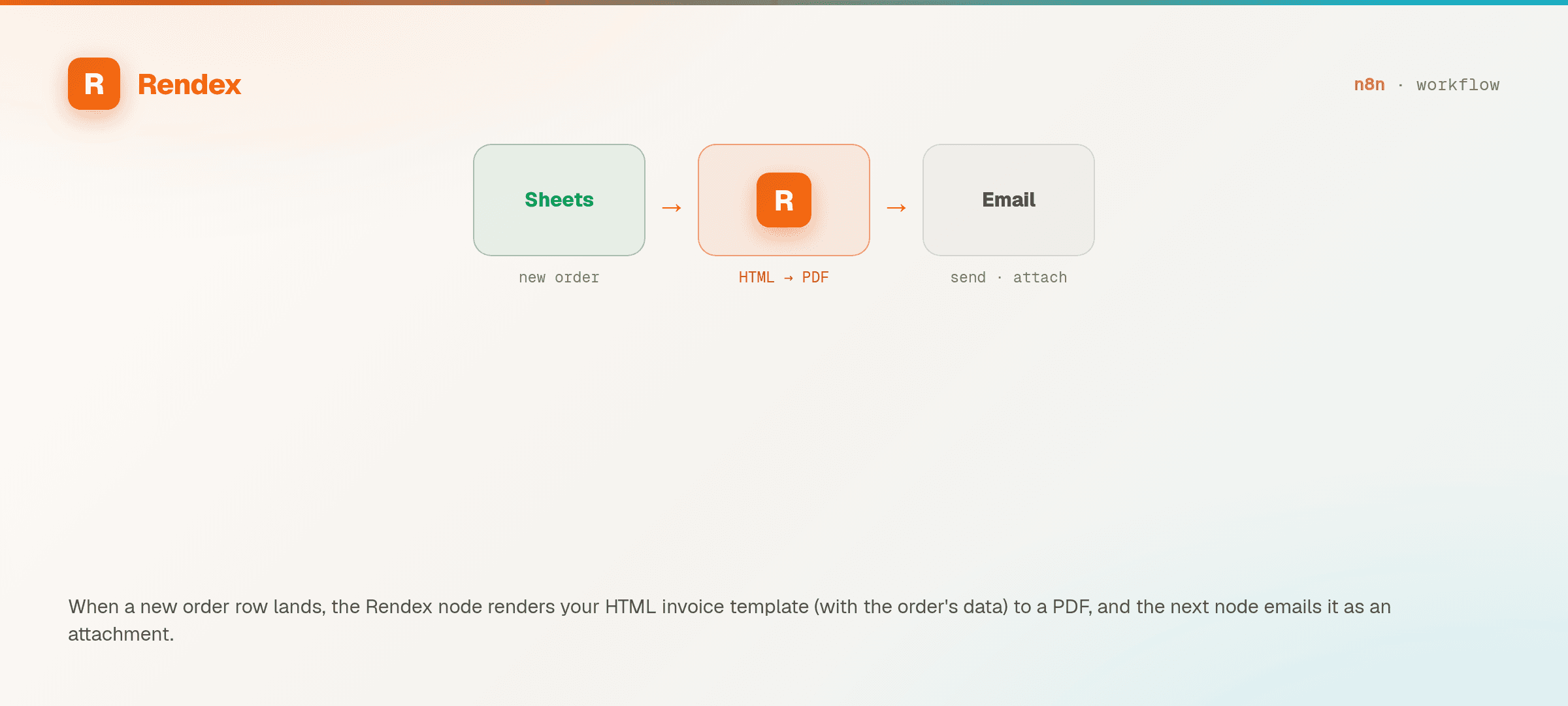
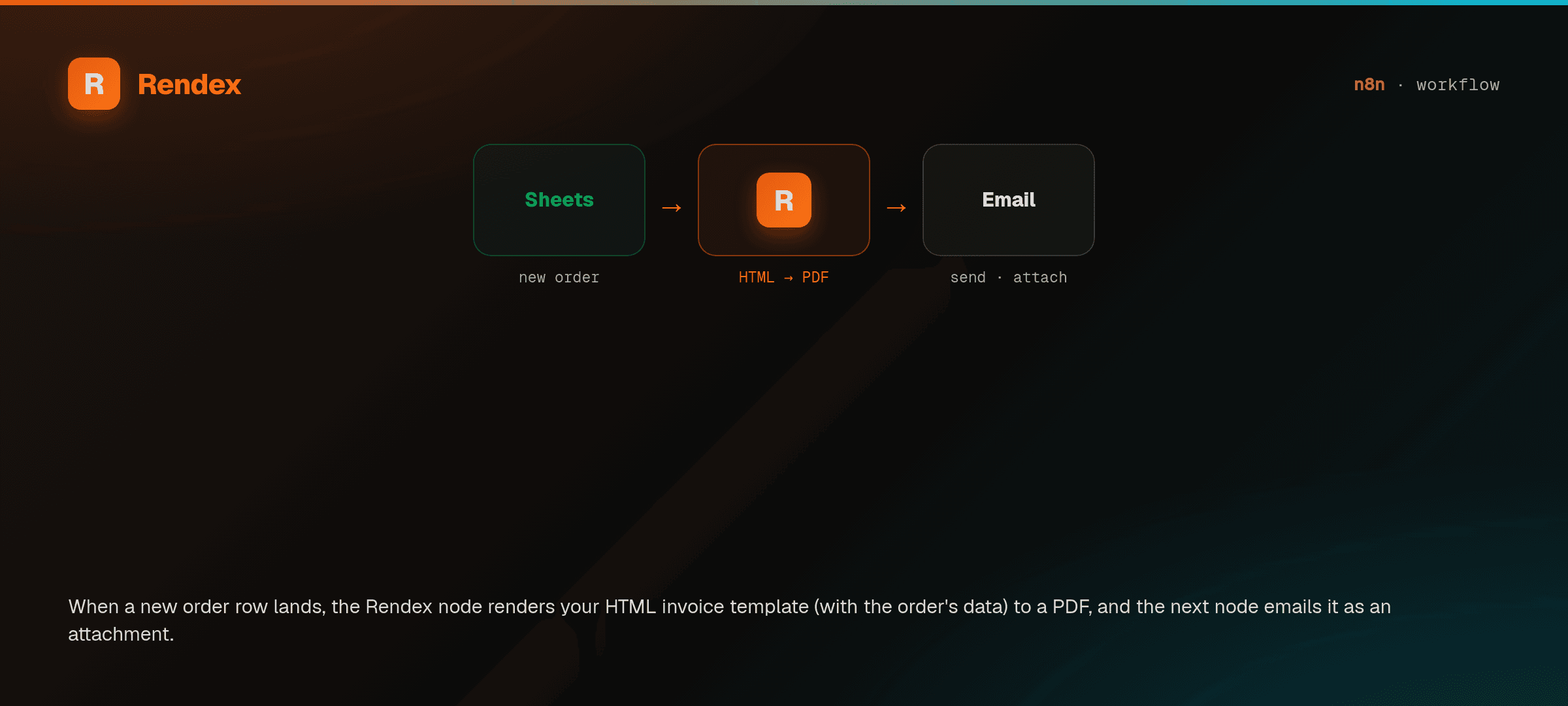
Recipe 1 — Render an invoice PDF on each new order
- Trigger: a new row in Google Sheets, a Stripe event, or any order source.
- Rendex node: Resource
Screenshot, OperationCapture, SourceHTML. Paste your invoice template and map order fields with expressions. Set Format topdf. - Send Email (or Upload to S3 / Google Drive) — attach the
databinary the Rendex node produced.
Recipe 2 — Generate a social OG card per blog post
- Trigger: an RSS or CMS webhook node fires on a new post.
- Rendex node: Source
HTML, Formatpng. Build a branded card template and inject the post title and author with expressions. - Upload to S3— store the PNG and use its URL as the post's
og:image.
Recipe 3 — Async capture with webhook callback
- Rendex node: Operation
Capture Async. Paste a Webhooknode's production URL into the Webhook URL field. The node returns ajobIdinstantly. - In the receiving workflow, verify the HMAC signature on the
rendex-signatureheader, then download the signed result URL from the payload.
Plan Limits
Every Rendex API limit applies inside n8n.
| Limit | Free | Basic | Starter | Pro | Enterprise |
|---|---|---|---|---|---|
| Rate limit (req/min) | 3 | 20 | 60 | 300 | 1000 |
| Batch size | — | 10 | 25 | 100 | 500 |
| Concurrent async jobs | 3 | 15 | 50 | 200 | 1000 |
| Geo-targeting | — | — | — | Yes | Yes |
See the pricing page for full plan details.
Tips & Best Practices
- Prefer Capture (sync) for HTML rendering. Rendering raw HTML is fast, so the synchronous Capture operation finishes in a single node — no polling needed.
- Use Capture Async for slow URLs.If a live page is heavy or rate-limited, switch to Capture Async with a webhook so you aren't blocking the workflow run.
- Map data with expressions. The HTML field accepts n8n expressions, so you can build a single template and feed it from any upstream node.
- Wait for hydration on SPAs. For client-rendered pages, set Wait For Selector in Additional Options to a DOM element that only appears after load.
Troubleshooting
The credential won't validate
Confirm the key starts with rdx_ and has exactly 22 characters after the prefix. n8n checks it against /v1/credential-check; a 401 usually means a trailing space or a rotated key. Re-paste directly from your dashboard.
The image is blank
For live URLs that render via JavaScript, set Wait For Selector in Additional Options, or increase Delay. For raw HTML, check that your markup is self-contained — reference web fonts and remote images by absolute URL.
Support
For Rendex API questions, email support@rendex.dev or check the error reference. Node issues can be filed on the GitHub repository.
Next Steps
- n8n automation use case — the workflows, batch invoicing, and PDF recipes this node unlocks.
- Create a free Rendex API key — 100 renders/month, no credit card.
- Quickstart — see the SDK and REST equivalents of every node operation.
- API Reference — every rendering parameter exposed in the node is documented here.
- Webhooks — deep-dive on the async + webhook pattern used in Recipe 3.