How to Make Screenshot APIs Fast: 5 Optimizations
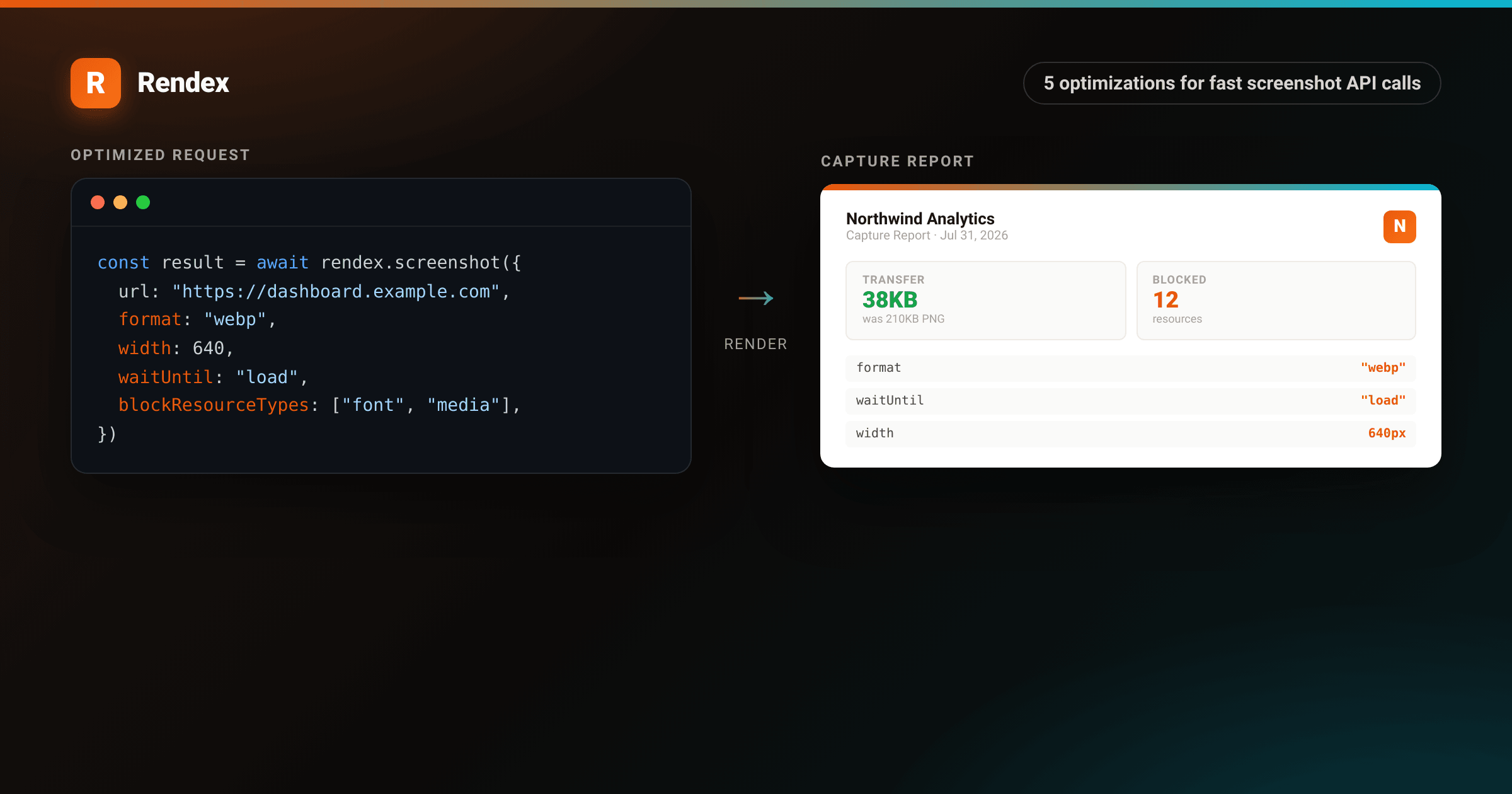
Most screenshot API calls take longer than they need to. The bottleneck is rarely the API itself. It is the choices you make when calling it: the output format, the viewport size, which resources the browser loads, and whether you send one request or fifty. Five adjustments cover the majority of avoidable overhead.
These optimizations apply to the Rendex API and are illustrated with the JavaScript SDK, but the same principles apply to any screenshot service backed by a real browser.
1. Use a compressed output format
PNG is lossless and therefore the largest output format by default. For thumbnails, preview cards, and social images where exact pixel accuracy is not required, WebP or JPEG cut file size by 50 to 80 percent with no perceptible quality loss at typical display sizes. Smaller files transfer faster, use less storage, and cost less bandwidth.
import { Rendex } from "@copperline/rendex"
import { writeFileSync } from "fs"

const rendex = new Rendex(process.env.RENDEX_API_KEY!)

// PNG default — 210 KB for a typical dashboard
const png = await rendex.screenshot({ url: "https://example.com" })

// WebP — same quality, ~38 KB (5–6x smaller)
const webp = await rendex.screenshot({
  url: "https://example.com",
  format: "webp",
  quality: 82,        // 1–100; 80–85 is the sweet spot for web delivery
})

writeFileSync("capture.webp", webp.image)
Use format: "jpeg" when you need maximum browser compatibility. Use format: "webp" when your pipeline controls the delivery environment. Avoid PNG unless you need lossless fidelity, such as for compliance screenshots or pixel-diffing in a visual regression test.
2. Right-size the viewport
The default viewport is 1280×800 pixels at 2× device pixel ratio. That produces a 2560×1600 retina capture, which is correct for high-quality renders but wasteful for thumbnail generation. If your pipeline downscales the result anyway, tell the API to capture at the target size instead.
// Generating a 200px wide card thumbnail?
// Render at 400px (2× target) instead of 1280px.
const thumb = await rendex.screenshot({
  url: "https://example.com",
  format: "webp",
  width: 400,
  height: 300,
  deviceScaleFactor: 1,   // skip retina; 400px is already 2× of 200px display
})
Smaller viewports also mean the page loads fewer resources (many sites skip lazy-loaded images below the fold), which reduces capture time as well as output size.
3. Block resources you do not need
Third-party analytics scripts, font files, and video embeds can add hundreds of milliseconds to a page load. The API blocks ads and trackers by default via blockAds: true. For pages heavy with fonts or media, go further with blockResourceTypes.
const result = await rendex.screenshot({
  url: "https://dashboard.example.com",
  format: "webp",
  // Block fonts (page uses system stack), media embeds, and other extras.
  // Ads are already blocked by default.
  blockResourceTypes: ["font", "media", "other"],
})
Valid types are "font", "image", "media", "stylesheet", and "other". Be careful blocking "image" or "stylesheet" on pages where those are part of the visual result. Reserve those for plain-HTML or data-heavy dashboards where CSS and layout are self-contained.
4. Choose the right wait strategy
The default waitUntil: "networkidle2" waits until there are at most two in-flight network connections for 500 ms. That is the right default for public pages with third-party scripts, but it adds wait time for pages that are already fully rendered on DOMContentLoaded. For internal tools, server-rendered apps, and pages under your control, a faster strategy is available.
// For fast server-rendered pages (Next.js SSR, Rails, Django):
const result = await rendex.screenshot({
  url: "https://internal-dashboard.example.com",
  waitUntil: "load",  // fires when document + subresources have loaded
})

// For heavy client-side apps that signal readiness with a DOM marker:
const spa = await rendex.screenshot({
  url: "https://app.example.com/dashboard",
  waitForSelector: "#main-content",  // wait until this element appears
  waitUntil: "domcontentloaded",
})
Use "load" for most internal pages. Use waitForSelector when a React or Vue app renders content asynchronously. The SPA screenshot waitFor guide covers framework-specific patterns in more detail.
5. Submit multiple captures in one batch call
Firing fifty individual requests wastes connection overhead, sequential queueing, and redundant auth checks on each call. The batch endpoint accepts 5 to 500 URLs per call depending on your plan, submits them all at once, and processes them concurrently on the edge.
import { Rendex } from "@copperline/rendex"

const rendex = new Rendex(process.env.RENDEX_API_KEY!)

// Submit 50 product pages in a single API call
const batchResult = await rendex.batch({
  urls: productUrls,   // string[], max 500 depending on plan
  defaults: {
    format: "webp",
    quality: 82,
    width: 640,
    waitUntil: "load",
    blockResourceTypes: ["font", "media"],
  },
  webhookUrl: "https://yourapp.com/webhooks/screenshots",
})

console.log(batchResult.data.batchId)  // poll or wait for webhook
console.log(batchResult.data.totalJobs) // 50
The batch call returns a batchId and a list of per-URL jobId values. Poll individual jobs at /v1/jobs/:jobId or set a webhookUrl to receive a signed callback when all captures complete. See the API reference for the full batch schema and plan-based limits.
<!DOCTYPE html>
<html lang="en">
<head>
<meta charset="utf-8">
<style>
  :root { --brand: #ea580c; --brand-2: #06b6d4; }
  * { box-sizing: border-box; margin: 0; padding: 0; }
  body { background: #f5f0eb; display: flex; justify-content: center; align-items: flex-start; padding: 40px 24px; font-family: -apple-system, BlinkMacSystemFont, "Segoe UI", Helvetica, Arial, sans-serif; -webkit-font-smoothing: antialiased; }
  .page {
    background: #fff;
    width: 820px;
    border-radius: 8px;
    box-shadow: 0 4px 6px rgba(0,0,0,0.05), 0 24px 48px rgba(0,0,0,0.10);
    overflow: hidden;
  }
  .topbar { height: 5px; background: linear-gradient(90deg, var(--brand), var(--brand-2)); }
  .header { padding: 28px 36px 20px; border-bottom: 1px solid #f0ebe6; display: flex; align-items: center; justify-content: space-between; }
  .logo-row { display: flex; align-items: center; gap: 10px; }
  .logo { width: 34px; height: 34px; background: linear-gradient(135deg, var(--brand), #f97316); border-radius: 8px; display: flex; align-items: center; justify-content: center; color: #fff; font-weight: 800; font-size: 18px; box-shadow: 0 3px 10px rgba(234,88,12,0.3); }
  .company { font-size: 15px; font-weight: 700; color: #1c1917; }
  .report-label { font-size: 12px; color: #78716c; font-weight: 600; letter-spacing: 0.5px; text-transform: uppercase; }
  .meta { text-align: right; }
  .meta .date { font-size: 12px; color: #a8a29e; }
  .meta .id { font-size: 11px; color: #d6d3d1; margin-top: 2px; }
  .body { padding: 28px 36px; }
  .title { font-size: 17px; font-weight: 700; color: #1c1917; margin-bottom: 6px; }
  .subtitle { font-size: 13px; color: #78716c; margin-bottom: 24px; }
  .grid { display: grid; grid-template-columns: 1fr 1fr 1fr; gap: 14px; margin-bottom: 28px; }
  .stat { background: #fafaf9; border: 1px solid #f0ebe6; border-radius: 8px; padding: 16px 18px; }
  .stat-label { font-size: 11px; text-transform: uppercase; letter-spacing: 0.8px; color: #a8a29e; font-weight: 600; margin-bottom: 6px; }
  .stat-val { font-size: 26px; font-weight: 800; color: #1c1917; line-height: 1; }
  .stat-val.good { color: #16a34a; }
  .stat-val.brand { color: var(--brand); }
  .stat-unit { font-size: 12px; color: #a8a29e; margin-top: 3px; }
  .section-title { font-size: 12px; font-weight: 700; text-transform: uppercase; letter-spacing: 0.8px; color: #78716c; margin-bottom: 12px; }
  .opts { display: flex; flex-direction: column; gap: 8px; }
  .opt-row { display: flex; justify-content: space-between; align-items: center; padding: 10px 14px; background: #fafaf9; border-radius: 6px; border: 1px solid #f0ebe6; }
  .opt-key { font-size: 12px; font-family: ui-monospace, monospace; color: #44403c; font-weight: 600; }
  .opt-val { font-size: 12px; font-family: ui-monospace, monospace; color: var(--brand); font-weight: 700; }
  .badge { display: inline-block; background: #dcfce7; color: #15803d; font-size: 10px; font-weight: 700; padding: 2px 8px; border-radius: 999px; text-transform: uppercase; letter-spacing: 0.5px; }
</style>
</head>
<body>
<div class="page">
  <div class="topbar"></div>
  <div class="header">
    <div class="logo-row">
      <div class="logo">N</div>
      <div>
        <div class="company">Northwind Analytics</div>
        <div class="report-label">Screenshot Capture Report</div>
      </div>
    </div>
    <div class="meta">
      <div class="date">July 31, 2026</div>
      <div class="id">Report #2026-0731</div>
    </div>
  </div>
  <div class="body">
    <div class="title">Optimized Capture Settings</div>
    <div class="subtitle">Performance report for the dashboard screenshot pipeline</div>
    <div class="grid">
      <div class="stat">
        <div class="stat-label">Avg Transfer</div>
        <div class="stat-val good">38<span style="font-size:14px">KB</span></div>
        <div class="stat-unit">WebP (was 210KB PNG)</div>
      </div>
      <div class="stat">
        <div class="stat-label">Resources Blocked</div>
        <div class="stat-val brand">12</div>
        <div class="stat-unit">fonts, analytics, ads</div>
      </div>
      <div class="stat">
        <div class="stat-label">Batch Size</div>
        <div class="stat-val">50</div>
        <div class="stat-unit">URLs per call</div>
      </div>
    </div>
    <div class="section-title">Applied Optimizations</div>
    <div class="opts">
      <div class="opt-row"><span class="opt-key">format</span><span class="opt-val">"webp"</span></div>
      <div class="opt-row"><span class="opt-key">quality</span><span class="opt-val">82</span></div>
      <div class="opt-row"><span class="opt-key">width</span><span class="opt-val">640</span></div>
      <div class="opt-row"><span class="opt-key">waitUntil</span><span class="opt-val">"load"</span></div>
      <div class="opt-row"><span class="opt-key">blockResourceTypes</span><span class="opt-val">["font","image","media"]</span></div>
    </div>
  </div>
</div>
</body>
</html>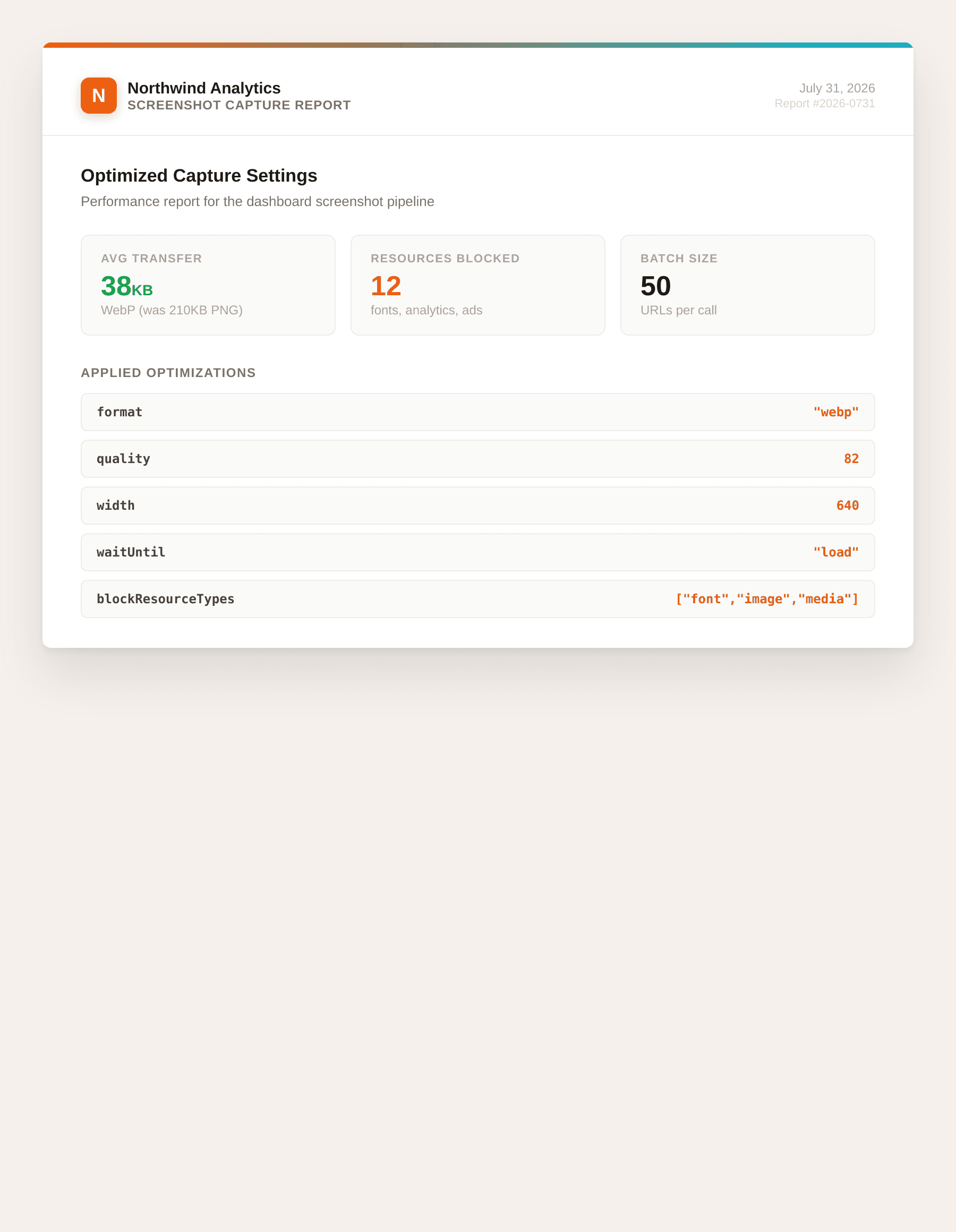
Putting it together
The optimizations compound. A WebP format with a right-sized viewport and blocked fonts will cut both file size and capture time. Here is a production-ready configuration that applies all five:
import { Rendex } from "@copperline/rendex"
import { writeFileSync } from "fs"

const rendex = new Rendex(process.env.RENDEX_API_KEY!)

const { image, metadata } = await rendex.screenshot({
  url: "https://dashboard.example.com",
  format: "webp",
  quality: 82,
  width: 640,
  height: 480,
  deviceScaleFactor: 1,
  waitUntil: "load",
  blockResourceTypes: ["font", "media", "other"],
})

writeFileSync("dashboard.webp", image)
// metadata.bytesSize — bytes transferred
// metadata.loadTimeMs — page load time in ms (do not claim as API response time)
Troubleshooting
Page looks broken after blocking resources. Start conservative: block only "font" and "media"first. If the page uses web fonts for icons (Font Awesome, etc.), those disappear when fonts are blocked. Either keep fonts, or inject a fallback CSS rule with css: "* { font-family: sans-serif !important; }".
waitUntil: "load" returns a blank page. The page is rendering content after the load event via JavaScript. Use waitForSelector with a CSS selector that appears when the content is ready, or add a small delay (in milliseconds) as a last resort.
Batch results have some failed jobs. Individual jobs in a batch can fail without failing the whole batch. Poll /v1/jobs/:jobId for each job and check the status field. Failed jobs return an error code and message. The most common causes are pages that timeout or return non-200 responses.
Next steps
The free screenshot tool lets you test format and viewport settings without writing any code. For capturing React, Vue, or Svelte apps that render asynchronously, the SPA screenshot waitFor guide has framework-specific selector patterns.
Ready to run optimized captures at scale? Get a free API key (100 calls/month, no credit card required) or check the pricing page for higher-volume plans.