SPA Screenshot: waitFor Strategies for React, Vue, Svelte
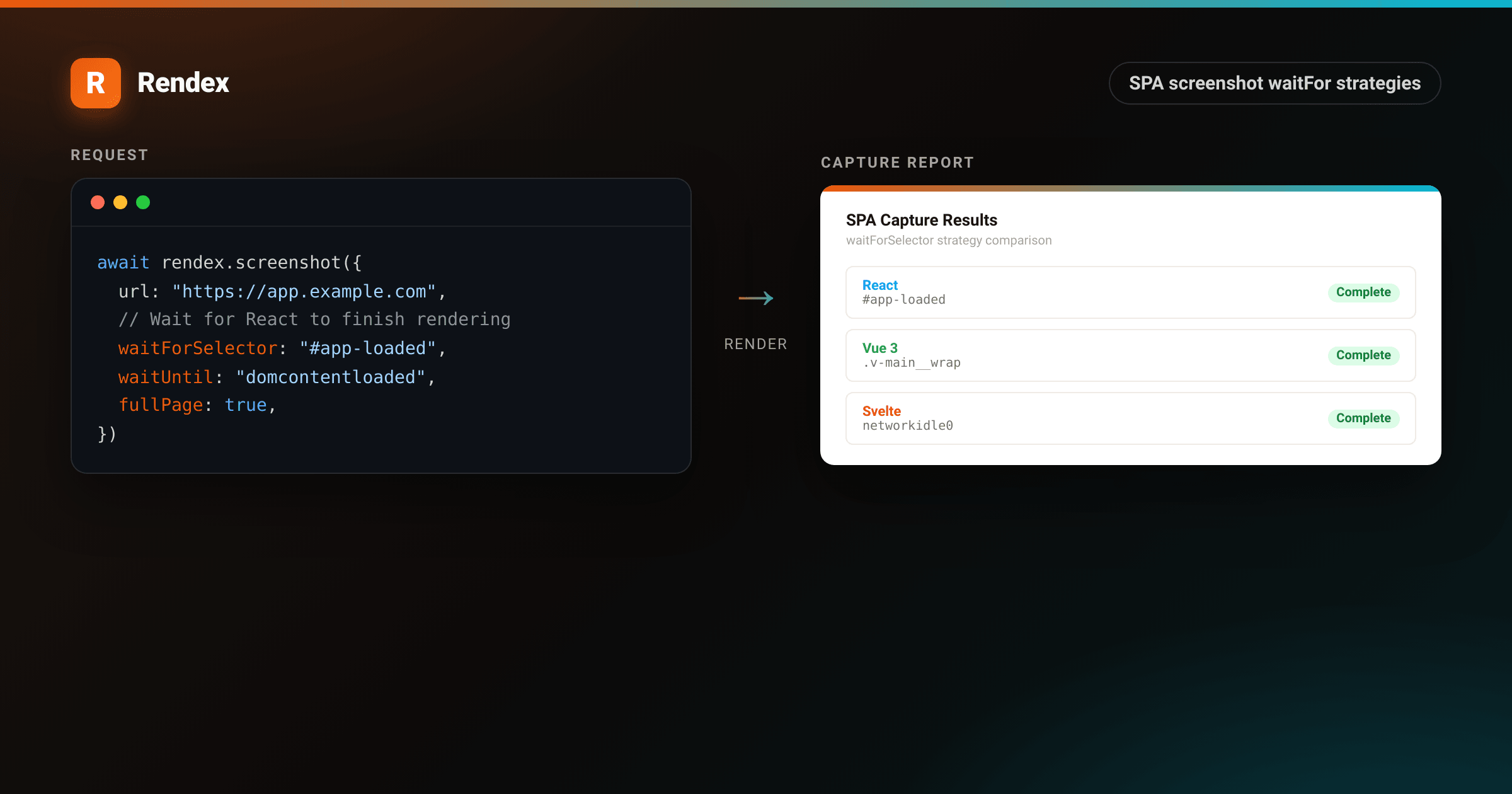
Single-page apps render content after the initial HTML loads. A screenshot taken too early captures a loading spinner or an empty container. The fix is telling the browser to wait for the right signal before the shutter fires.
This guide covers waitForSelector and waitUntil patterns for React, Vue 3, and Svelte apps, with working code examples for each. The API parameters covered here apply directly to the Rendex REST API and the JavaScript SDK.
How wait strategies work
When you call the screenshot endpoint, the browser navigates to the URL and waits for one of two conditions before capturing:
waitUntil: a network or lifecycle event:"load","domcontentloaded","networkidle0", or"networkidle2"(default). These are useful when the page finishes rendering as part of its normal load cycle.waitForSelector: a CSS selector that appears in the DOM when the content you care about is ready. This is the most reliable strategy for SPAs, because the page controls exactly when it signals readiness.
The two parameters can be combined. Set waitUntil: "domcontentloaded" so the browser parses the initial HTML fast, then set waitForSelector to a framework-specific rendered element.
React
React apps hydrate client-side after the initial HTML. The easiest approach is adding a marker element that React renders when the app is mounted.
// Add a zero-size marker element when the app has mounted
import { useEffect, useState } from "react"

export default function App() {
  const [mounted, setMounted] = useState(false)

  useEffect(() => {
    setMounted(true)
  }, [])

  return (
    <>
      {mounted && <div id="app-loaded" style={{ display: "none" }} />}
      {/* rest of your app */}
    </>
  )
}import { Rendex } from "@copperline/rendex"
const rendex = new Rendex(process.env.RENDEX_API_KEY!)
const result = await rendex.screenshot({
url: "https://myapp.example.com",
waitForSelector: "#app-loaded", // wait for the mounted marker
waitUntil: "domcontentloaded", // parse HTML first, then watch for selector
fullPage: true,
})If you cannot modify the app source, pick an element that only exists after React has rendered meaningful content: a specific data row, a chart container, or a user-specific heading. Avoid generic elements like "div" or "main" that exist in the server HTML before hydration.
For Next.js apps with server components, most content is in the initial HTML. Use waitUntil: "load" and skip waitForSelector unless the page has client-side data fetching.
Vue 3
Vue 3 apps with Composition API mount similarly to React. The onMounted hook fires when the component tree is in the DOM.
<script setup>
import { ref, onMounted } from "vue"

const isReady = ref(false)

onMounted(() => {
  isReady.value = true
})
</script>

<template>
  <!-- Invisible readiness signal for screenshot automation -->
  <div v-if="isReady" id="vue-ready" style="display:none" />
  <!-- rest of template -->
</template>const result = await rendex.screenshot({
url: "https://vueapp.example.com",
waitForSelector: "#vue-ready",
waitUntil: "domcontentloaded",
fullPage: true,
})Vuetify and Quasar apps often render content inside a .v-main__wrap or .q-page-container element. These are reliable selectors if you cannot add a marker component.
Svelte
Svelte compiles to vanilla JS and typically hydrates faster than framework-heavy alternatives. For many Svelte apps, waitUntil: "networkidle0" is sufficient. It waits until there are no in-flight network requests for 500 ms, which covers most async data fetches after mount.
// Most Svelte apps finish rendering before network goes idle
const result = await rendex.screenshot({
  url: "https://svelteapp.example.com",
  waitUntil: "networkidle0",
  fullPage: true,
})

// For SvelteKit apps with server-side rendering, "load" is often enough:
const ssr = await rendex.screenshot({
  url: "https://sveltekit.example.com",
  waitUntil: "load",
  fullPage: true,
})
If the Svelte app fetches data client-side after mount, add a marker element in the onMount lifecycle and use waitForSelector as with React and Vue.
Example: framework comparison capture
<!DOCTYPE html>
<html lang="en">
<head>
<meta charset="utf-8">
<style>
  :root { --brand: #ea580c; --brand-2: #06b6d4; }
  * { box-sizing: border-box; margin: 0; padding: 0; }
  body { background: #f5f0eb; display: flex; justify-content: center; align-items: flex-start; padding: 40px 24px; font-family: -apple-system, BlinkMacSystemFont, "Segoe UI", Helvetica, Arial, sans-serif; -webkit-font-smoothing: antialiased; }
  .page {
    background: #fff;
    width: 820px;
    border-radius: 8px;
    box-shadow: 0 4px 6px rgba(0,0,0,0.05), 0 24px 48px rgba(0,0,0,0.10);
    overflow: hidden;
  }
  .topbar { height: 5px; background: linear-gradient(90deg, var(--brand), var(--brand-2)); }
  .header { padding: 24px 36px 18px; border-bottom: 1px solid #f0ebe6; display: flex; align-items: center; justify-content: space-between; }
  .logo-row { display: flex; align-items: center; gap: 10px; }
  .logo { width: 32px; height: 32px; background: linear-gradient(135deg, var(--brand), #f97316); border-radius: 7px; display: flex; align-items: center; justify-content: center; color: #fff; font-weight: 800; font-size: 16px; }
  .company { font-size: 14px; font-weight: 700; color: #1c1917; }
  .report-label { font-size: 11px; color: #a8a29e; }
  .badge { font-size: 11px; color: #15803d; background: #dcfce7; padding: 3px 10px; border-radius: 999px; font-weight: 600; }
  .body { padding: 24px 36px; }
  .title { font-size: 16px; font-weight: 700; color: #1c1917; margin-bottom: 4px; }
  .subtitle { font-size: 12px; color: #78716c; margin-bottom: 22px; }
  .capture-config { background: #fafaf9; border: 1px solid #f0ebe6; border-radius: 8px; padding: 16px 20px; margin-bottom: 20px; }
  .cfg-title { font-size: 11px; font-weight: 700; text-transform: uppercase; letter-spacing: 0.8px; color: #a8a29e; margin-bottom: 12px; }
  .cfg-rows { display: flex; flex-direction: column; gap: 7px; }
  .cfg-row { display: flex; justify-content: space-between; align-items: center; }
  .cfg-key { font-size: 12px; font-family: ui-monospace, monospace; color: #44403c; }
  .cfg-val { font-size: 12px; font-family: ui-monospace, monospace; color: var(--brand); font-weight: 700; }
  .results { display: grid; grid-template-columns: 1fr 1fr 1fr; gap: 12px; }
  .result { border: 1px solid #f0ebe6; border-radius: 8px; padding: 14px 16px; }
  .fw { font-weight: 700; font-size: 12px; color: #44403c; margin-bottom: 4px; display: flex; align-items: center; gap: 6px; }
  .dot { width: 8px; height: 8px; border-radius: 50%; }
  .dot.react { background: #61dafb; }
  .dot.vue { background: #42b883; }
  .dot.svelte { background: #ff3e00; }
  .strategy { font-size: 11px; font-family: ui-monospace, monospace; color: #78716c; margin-bottom: 6px; }
  .outcome { font-size: 11px; color: #15803d; font-weight: 600; }
</style>
</head>
<body>
<div class="page">
  <div class="topbar"></div>
  <div class="header">
    <div class="logo-row">
      <div class="logo">A</div>
      <div>
        <div class="company">Acadia Software</div>
        <div class="report-label">SPA Screenshot Report</div>
      </div>
    </div>
    <span class="badge">3 captures completed</span>
  </div>
  <div class="body">
    <div class="title">Wait Strategy Results</div>
    <div class="subtitle">Comparing waitForSelector vs waitUntil across frameworks</div>
    <div class="capture-config">
      <div class="cfg-title">Shared Configuration</div>
      <div class="cfg-rows">
        <div class="cfg-row"><span class="cfg-key">format</span><span class="cfg-val">"png"</span></div>
        <div class="cfg-row"><span class="cfg-key">fullPage</span><span class="cfg-val">true</span></div>
        <div class="cfg-row"><span class="cfg-key">blockAds</span><span class="cfg-val">true</span></div>
        <div class="cfg-row"><span class="cfg-key">bestAttempt</span><span class="cfg-val">true</span></div>
      </div>
    </div>
    <div class="results">
      <div class="result">
        <div class="fw"><span class="dot react"></span>React</div>
        <div class="strategy">waitForSelector:<br/>"#app-loaded"</div>
        <div class="outcome">Complete render</div>
      </div>
      <div class="result">
        <div class="fw"><span class="dot vue"></span>Vue</div>
        <div class="strategy">waitForSelector:<br/>".v-main__wrap"</div>
        <div class="outcome">Complete render</div>
      </div>
      <div class="result">
        <div class="fw"><span class="dot svelte"></span>Svelte</div>
        <div class="strategy">waitUntil:<br/>"networkidle0"</div>
        <div class="outcome">Complete render</div>
      </div>
    </div>
  </div>
</div>
</body>
</html>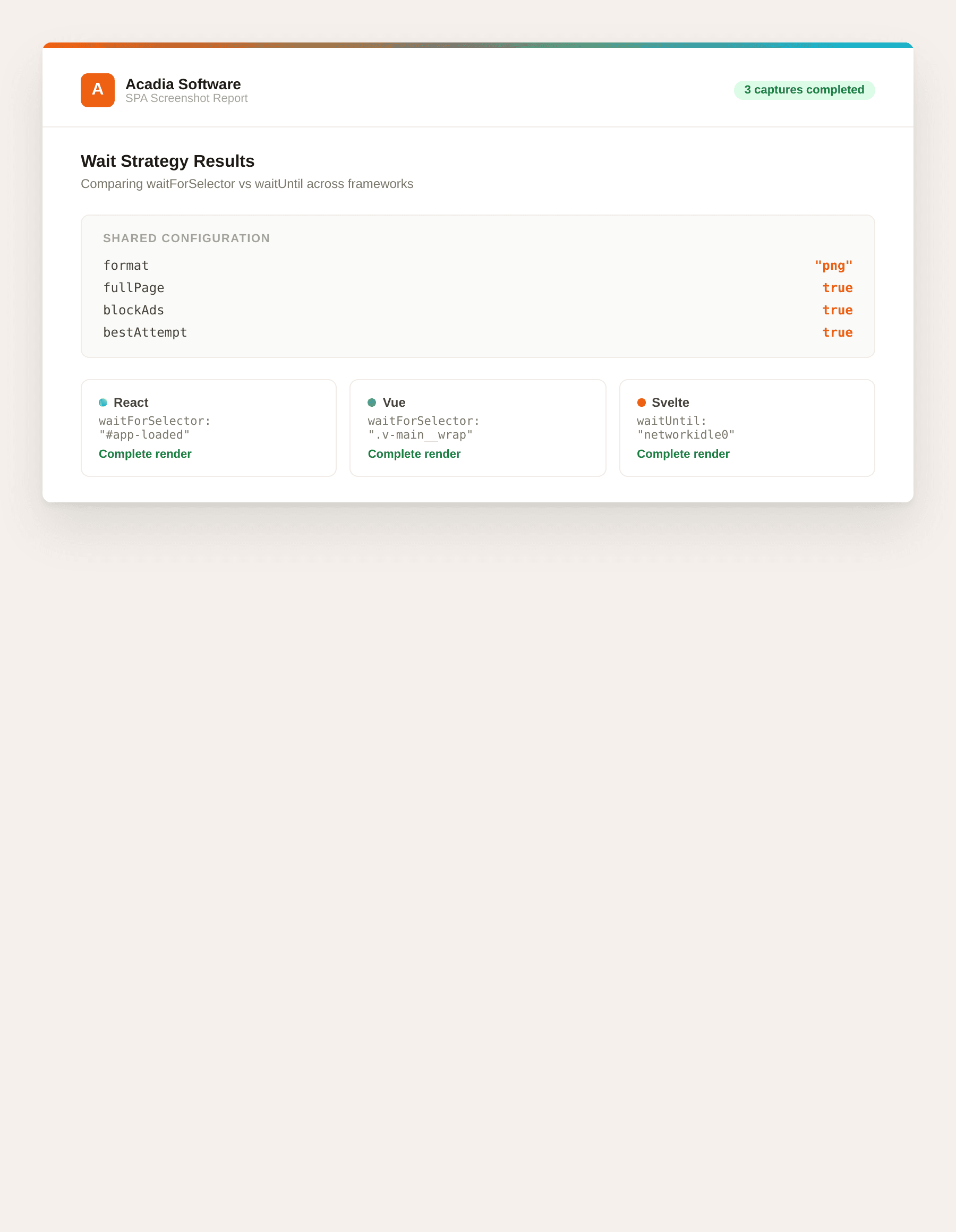
Choosing a reliable selector
A good waitForSelector target has three properties:
- Appears after all async data has loaded, not just after the component mounts. If your page fetches user data before rendering a table, wait for the table, not the mount marker.
- Unique on the page. If the selector matches multiple elements, the first match is used. Use an ID or a specific class that only appears on the target element.
- Does not flicker. Avoid selectors on elements that appear during a loading state and then get removed. The selector fires as soon as the element enters the DOM, not when it becomes stable.
Troubleshooting
The selector never appears and the capture times out. Check the selector in your browser's DevTools console with document.querySelector('#your-selector'). If it returns null, the element does not exist. Headless browsers and the Rendex rendering environment share the same DOM behavior as Chrome, so DevTools is the fastest way to validate.
The capture returns a partial render even with the selector. The selector appeared in the DOM but the visual content (images, fonts, charts) had not finished loading. Add a short delay in milliseconds after the selector fires, or wait for a more specific element that appears after all assets are ready.
waitUntil: "networkidle0" times out on every capture. The page has long-polling or WebSocket connections that keep the network active indefinitely. Switch to "networkidle2" (allows up to 2 in-flight connections) or use waitForSelector instead.
Cookie banners cover the content. Set blockCookieBanners: true to hide common consent overlays before capture, or use hideSelectors to target site-specific banners by CSS class.
Next steps
For Python-based screenshot automation, the Python screenshot guide covers the same wait parameters with the Python SDK. To capture authenticated pages in your SPA, inject session cookies with the cookies parameter as documented in the API reference.
Try the free screenshot tool to test a selector against a live URL before writing code. When you are ready to automate, get a free API key and start with 100 captures per month.