Rendex Watch: Visual Website-Change Monitoring
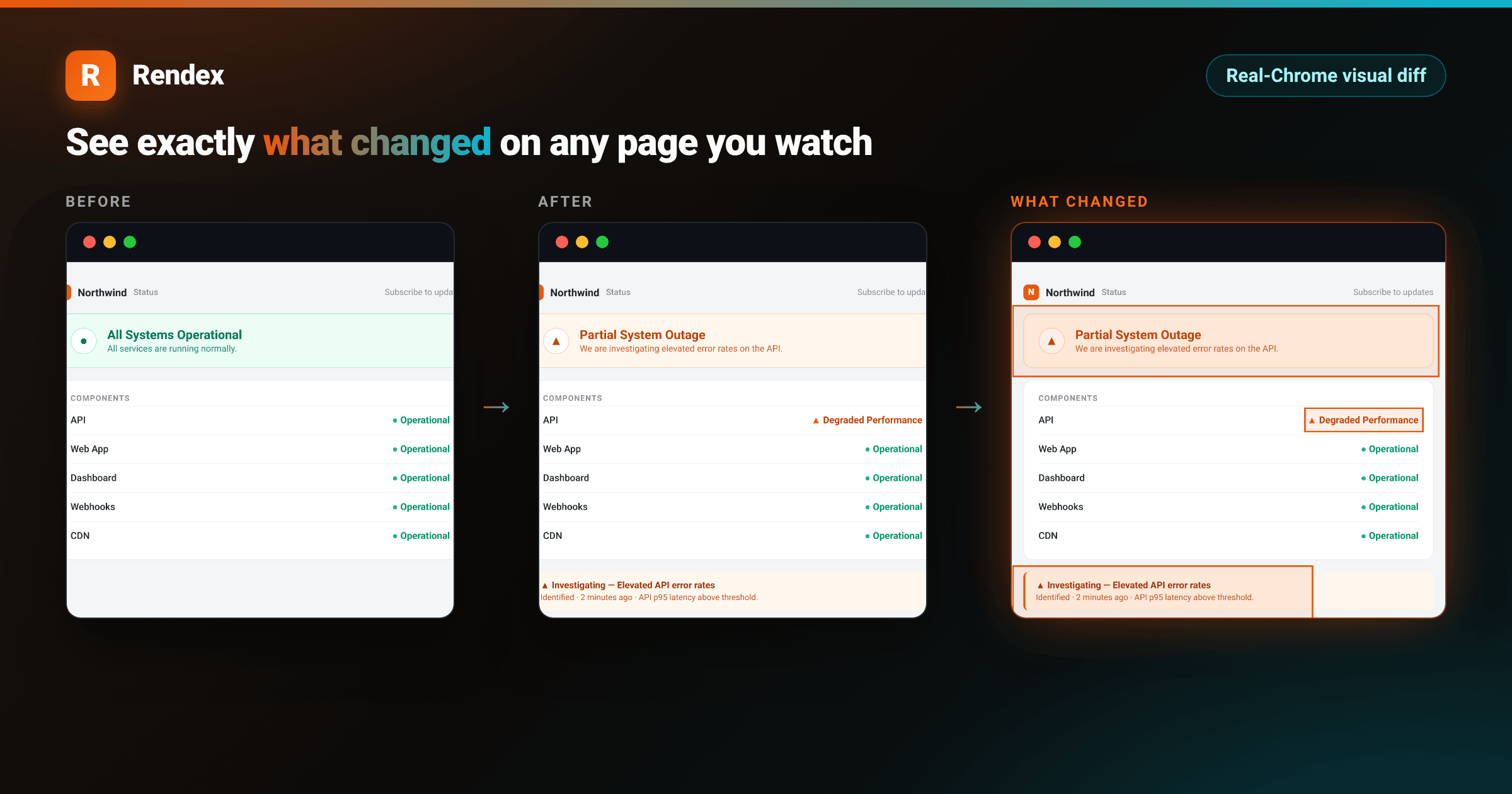
Rendex Watch is live. It monitors any URL on a schedule and shows you a real-Chrome before and after visual diff with a highlighted overlay, so you see exactly which part of the page changed, not just that something did. It runs inside the same platform as the rest of Rendex: one rdx_ key, one shared credit pool, one bill, alongside screenshots, PDF, and content extraction.
Most uptime checks tell you the server returned a 200. They stay green while a deploy blanks a section, a price flips, a cookie banner covers the page, or a third-party script wipes the layout. Watch captures the rendered page on a schedule, compares each check against a stored baseline, and alerts you by email or webhook when the page actually changes.
What shipped
Point a watch at a URL and pick how it should detect change: a visual diff (a real Chrome render, compared pixel by pixel), a text diff (the extracted page text), or both. When a check crosses your threshold, Rendex stores the before frame, the after frame, and an overlay that rings the changed regions in orange, then fires your alerts. The change notification carries the before, after, and overlay images, so the alert itself shows what moved.
<!DOCTYPE html>
<html lang="en">
<head>
<meta charset="utf-8">
<style>
:root { --brand: #ea580c; --brand-2: #06b6d4; }
* { box-sizing: border-box; }
body { margin: 0; }
.stage {
width: 1000px; height: 720px; position: relative; overflow: hidden;
display: flex; align-items: center; justify-content: center;
background:
radial-gradient(640px 320px at 12% -10%, rgba(234,88,12,0.18), transparent 60%),
radial-gradient(640px 320px at 92% 110%, rgba(6,182,212,0.16), transparent 60%),
linear-gradient(135deg, #1c1410 0%, #0c0a09 50%, #07171a 100%);
font-family: -apple-system, BlinkMacSystemFont, "Segoe UI", Roboto, Helvetica, Arial, sans-serif;
-webkit-font-smoothing: antialiased;
}
.card {
width: 840px; background: #ffffff; border-radius: 16px; overflow: hidden;
color: #1c1917; box-shadow: 0 30px 70px rgba(0,0,0,0.55);
}
.pbar { height: 6px; background: linear-gradient(90deg, var(--brand), var(--brand-2)); }
.pin { padding: 30px 36px 34px; }
.head { display: flex; align-items: center; gap: 12px; }
.mark { width: 36px; height: 36px; border-radius: 9px; background: linear-gradient(135deg, var(--brand), #f97316);
color: #fff; font-weight: 800; font-size: 21px; display: flex; align-items: center; justify-content: center;
box-shadow: 0 6px 16px rgba(234,88,12,0.35); }
.head .word { font-size: 19px; font-weight: 800; letter-spacing: -0.3px; color: #1c1917; }
.head .pill { margin-left: auto; font-size: 13px; font-weight: 700; color: #c2410c;
background: rgba(234,88,12,0.10); border: 1px solid rgba(234,88,12,0.25); padding: 6px 13px; border-radius: 999px; }
h2 { margin: 22px 0 4px; font-size: 25px; font-weight: 800; letter-spacing: -0.4px; }
.sub { margin: 0; font-size: 15px; color: #78716c; }
.frames { display: flex; gap: 16px; margin-top: 22px; align-items: stretch; }
.frame { flex: 1 1 0; min-width: 0; }
.flabel { font-size: 11px; letter-spacing: 1.2px; text-transform: uppercase; color: #a8a29e; font-weight: 700; margin-bottom: 8px; }
.flabel.hot { color: var(--brand); }
.shot { border-radius: 10px; overflow: hidden; border: 1px solid #e7e5e4; height: 230px; background: #f5f5f4; }
.shot.hot { border-color: rgba(234,88,12,0.55); box-shadow: 0 0 0 1px rgba(234,88,12,0.25); }
.shot img { width: 100%; height: 100%; object-fit: cover; object-position: top; display: block; }
.meta { margin-top: 22px; display: flex; align-items: center; gap: 14px; }
.badge { font-size: 14px; font-weight: 700; color: #1c1917; background: #fafaf9; border: 1px solid #e7e5e4;
border-radius: 10px; padding: 10px 14px; }
.badge .v { color: var(--brand); }
.btn { margin-left: auto; font-size: 15px; font-weight: 700; color: #fff;
background: linear-gradient(135deg, var(--brand), #f97316); border-radius: 10px; padding: 12px 22px;
box-shadow: 0 8px 20px rgba(234,88,12,0.35); }
</style>
</head>
<body>
<div class="stage">
<div class="card">
<div class="pbar"></div>
<div class="pin">
<div class="head">
<div class="mark">R</div>
<div class="word">Rendex Watch</div>
<div class="pill">Change detected</div>
</div>
<h2>Competitor pricing changed</h2>
<p class="sub">https://example.com/pricing</p>
<div class="frames">
<div class="frame">
<div class="flabel">Before</div>
<div class="shot"><img src="https://rendex.dev/watch/status-before.png" alt="before"></div>
</div>
<div class="frame">
<div class="flabel hot">What changed</div>
<div class="shot hot"><img src="https://rendex.dev/watch/status-overlay.png" alt="overlay"></div>
</div>
</div>
<div class="meta">
<div class="badge"><span class="v">6.7%</span> of the page changed across 3 regions</div>
<div class="btn">View change →</div>
</div>
</div>
</div>
</div>
</body>
</html>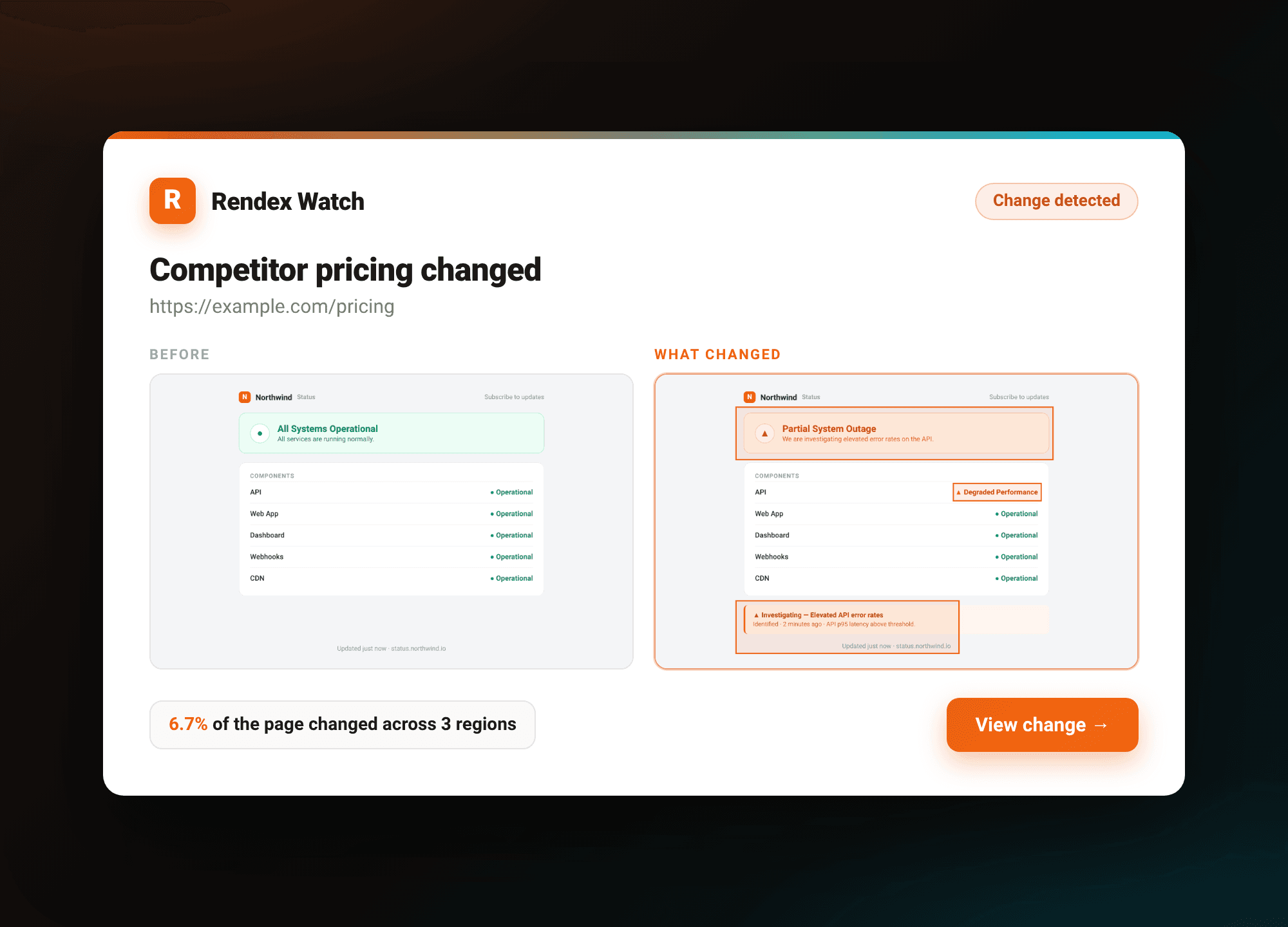
The full surface is available the day it ships: a REST API under /v1/watches, the JavaScript and Python SDKs, the Rendex MCP server for AI agents, a native n8n node, and a Zapier app. See the Rendex Watch overview for the product tour, or the Watch API reference for every parameter.
Why a visual diff catches more
Text and DOM diffs miss anything that breaks visually without changing the markup: a CSS regression, an image that fails to load, a font swap, a layout shift from an ad slot, a render that white-screens on a JavaScript error. A real-browser visual diff catches those because it compares what the page actually drew. The overlay then tells you where to look instead of leaving you to hunt through a full-page screenshot. For monitors built around content rather than layout, the text diff runs in the same check.
Create a watch
A watch is one POST to /v1/watches. Pass the URL, how it should detect change (diffMode is visual, text, or both), and how often to check (intervalMinutes). The optional threshold is a 0 to 1 noise floor the visual diff must exceed before a check counts as changed.
# Get your API key at rendex.dev/login
curl -X POST https://api.rendex.dev/v1/watches \
  -H "Authorization: Bearer rdx_YOUR_KEY" \
  -H "Content-Type: application/json" \
  -d '{
    "url": "https://example.com/pricing",
    "name": "Competitor pricing",
    "diffMode": "both",
    "intervalMinutes": 180,
    "threshold": 0.02,
    "webhookUrl": "https://your.app/hooks/rendex"
  }'
The first check establishes the baseline. Every check after that compares against it, and the baseline advances when a real change is confirmed, so you are always measuring against the most recent known-good frame. Each scheduled check is one render credit from the same pool your screenshots and PDFs draw on.
Watching a competitor's pricing page specifically, like the example above, is common enough that it gets its own walkthrough — see automating competitor price monitoring for selector scoping, noise suppression, and the exact webhook payload shape.
From an SDK, MCP, or no-code
The JavaScript and Python SDKs wrap the same endpoint. The JS SDK exposes createWatch, listWatches, getWatch, updateWatch, deleteWatch, runWatch, listWatchRuns, and testWatch; the Python SDK ships the snake_case equivalents.
// npm install @copperline/rendex
import { Rendex } from "@copperline/rendex";

const rendex = new Rendex("rdx_YOUR_KEY");

const watch = await rendex.createWatch({
  url: "https://example.com/pricing",
  diffMode: "both",
  intervalMinutes: 180,
  threshold: 0.02,
  webhookUrl: "https://your.app/hooks/rendex",
});

console.log(watch.id);
For no-code and agent workflows, the surface is native. The Rendex MCP server adds watch_create, watch_list, watch_get, watch_run, watch_test, watch_runs, and watch_deleteso an AI agent can set up and read monitors. The n8n node adds a Watch resource and a "Rendex Watch Trigger" that starts a workflow when a page changes, and the Zapier app adds the same actions plus a "Website Changed" trigger. See sending a Slack alert on a website change with n8n for that trigger wired straight into a Slack message. Want to see what Rendex captures for a URL before you commit a watch? The Preview a Website Watch tool runs a one-time capture in the browser.
Alerts: email and webhook
Email alerts work on every plan. Signed webhooks are available from the Starter tier and up. On a change, Rendex POSTs an HMAC-signed watch.changed event (with watch.recovered and watch.error for the recovery and failure transitions). The payload carries the change magnitude and signed image URLs.
{
  "event": "watch.changed",
  "watchId": "8f3c...",
  "url": "https://example.com/pricing",
  "changed": true,
  "diffScore": 0.067,
  "diffPixels": 48210,
  "beforeUrl": "https://rendex.dev/i/...signed",
  "afterUrl": "https://rendex.dev/i/...signed",
  "diffOverlayUrl": "https://rendex.dev/i/...signed"
}
Verify the signature before you trust the body. The JS and Python SDKs ship a verifyWebhook helper that checks the HMAC against your signing secret. The same signing scheme backs the async render webhooks, documented in the webhooks reference. To clear or replace an alert channel later, send an updateWatch call. The SDK reference lists every method.
Limits and notes
Watch counts and check frequency scale with your plan: Free monitors 1 page on a daily check, Starter 10 pages as often as every 3 hours, Pro 50 pages as often as every 30 minutes, and Enterprise 1,000 pages as often as every 5 minutes (counts are total, active plus paused). Geo-targeted checks, which render the page from a chosen country, are on Pro and Enterprise. There is no overage: if your credit pool runs out, the watch pauses rather than billing past the cap, and you resume it when you top up.
A single watch covers one page. For watching every page that matters on a competitor's site (homepage, pricing, changelog) under the same key and the per-host watch cap, see the multi-page monitoring walkthrough.
Every change event gives you the visual overlay, the change magnitude, the text diff, and a plain-English "what changed" summary: a free templated line on every plan, upgraded to an AI-written sentence for Pro and Enterprise, which is enough to route and triage without opening the dashboard. For a feature-by-feature look at how Watch compares to standalone monitors, see the best website monitoring tools roundup, or read why a developer might pick Watch over Visualping specifically.
Get started
If you already use Rendex for screenshots or PDF, Watch needs no new account, key, or bill: it draws from the same credit pool. Create your first watch from the Rendex Watch page or jump straight into the dashboard.
Start for free at rendex.dev/login. The free tier includes 1 watch on a daily check, with email alerts, alongside 100 render calls a month. No credit card required.
Continue Reading
Oct 27, 2026
How to Monitor a Competitor's Website for Changes
Oct 20, 2026
Automate Competitor Price Monitoring with Rendex Watch
Jun 12, 2026
Rendex Is Now a Verified n8n Community Node
Solution
Website Monitoring & Change Detection Screenshot API
Documentation
Watch
Documentation
Webhooks
Documentation
Sdks
Free Tool
Preview Website Watch Tool
Comparison
Best Website Monitoring Tools 2026