Add Screenshot Capability to Windsurf via MCP
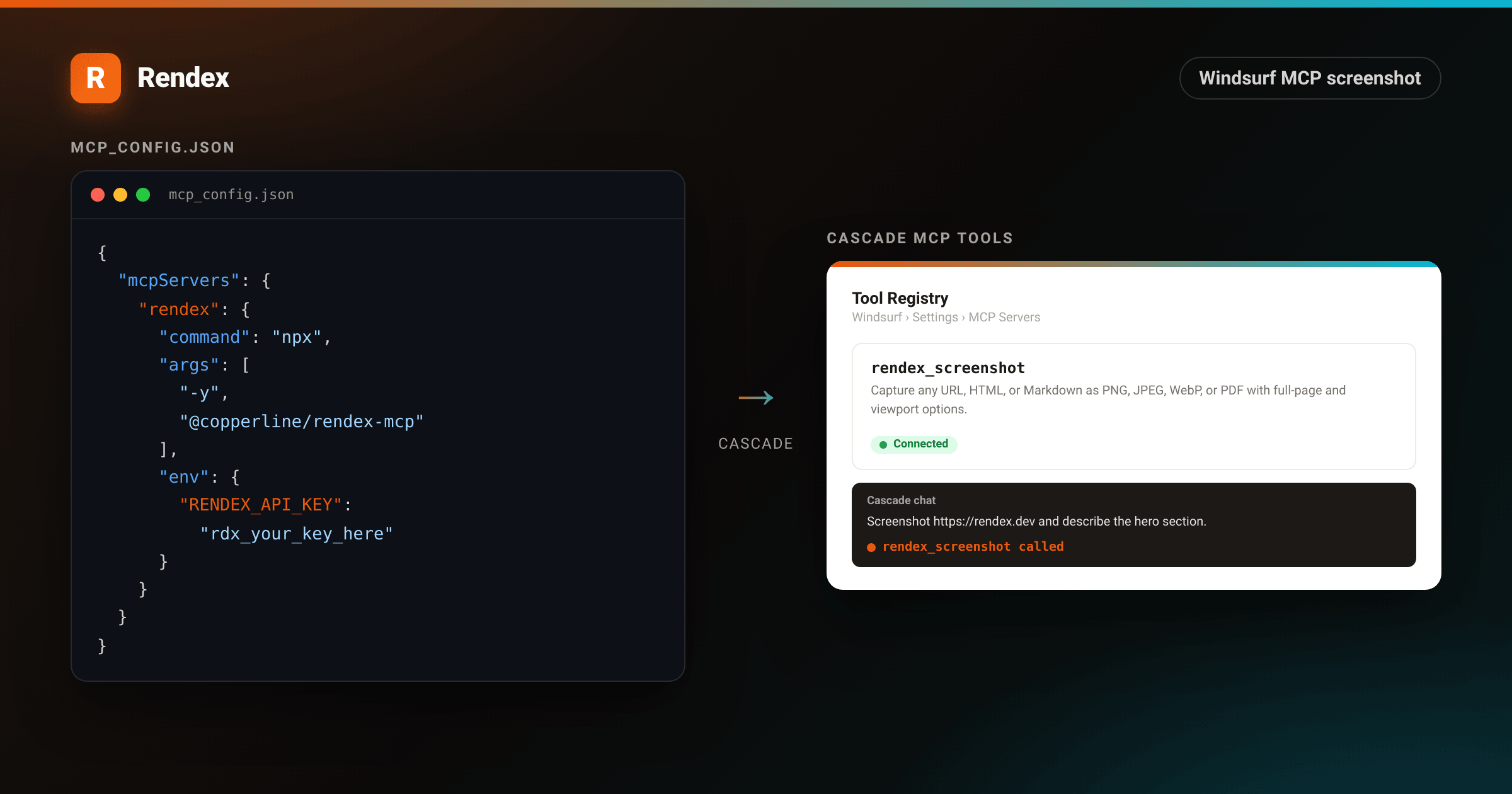
Windsurf's Cascade AI can read every file in your project and run terminal commands, but it cannot see a rendered web page. The Model Context Protocol (MCP) changes that: connect the Rendex MCP server and Cascade gains a tool it can call on its own to capture any URL and describe what it sees.
This guide configures rendex_screenshot in Windsurf in about five minutes. You get full-page PNG, JPEG, WebP, and PDF capture from inside Cascade, with no browser to manage.
Prerequisites
- Windsurf installed (any recent version with MCP support).
- Node.js on your machine so Windsurf can run the server with
npx. - A Rendex API key. The free tier includes 100 renders per month with no credit card required.
Step 1: Get a Rendex API key
Sign in at rendex.dev/login, open the dashboard, and copy your key. It starts with rdx_. Keep it out of version control. The quickstart covers rate limits and key rotation if you need those details.
Step 2: Open the MCP Servers panel
In Windsurf, click the gear icon in the status bar (or open the Command Palette and search for MCP Servers). This opens mcp_config.json, the file Cascade reads at startup to discover which MCP servers to connect to.
Step 3: Add the Rendex server
Paste the block below into mcp_config.json. Replace rdx_your_key_here with your actual key. The npx command downloads and runs the published package, so there is nothing to install separately.
{
  "mcpServers": {
    "rendex": {
      "command": "npx",
      "args": ["-y", "@copperline/rendex-mcp"],
      "env": {
        "RENDEX_API_KEY": "rdx_your_key_here"
      }
    }
  }
}
Save the file. If mcp_config.json already has other servers, add the "rendex" block inside the existing mcpServers object.
Step 4: Restart Cascade
Click Restart Cascade in the MCP Servers panel, or close and reopen Windsurf. Cascade will start the Rendex server in the background and register its tools.
Step 5: Verify the tool is available
In a Cascade chat, ask: What MCP tools do you have? Cascade should list rendex_screenshot along with a short description of its inputs. If it does not appear, check Troubleshooting below.
Step 6: Capture a page
Once the tool is registered, you can ask Cascade to capture any URL in natural language:
Screenshot https://rendex.dev and describe the hero section.

Capture https://example.com/checkout as a full-page PNG and check for layout issues.

Render https://example.com/dashboard and tell me if the loading spinner is still visible.
Cascade calls rendex_screenshot, waits for the render, and returns the image URL along with its analysis of the captured page. You can then ask follow-up questions about what it sees.
Example: Cascade captures and reads a page
Ask Cascade to screenshot a URL and it calls rendex_screenshot, gets the rendered page back, and answers from what it actually sees. Here it captures stripe.com and summarizes the hero.
<!DOCTYPE html>
<html lang="en">
<head>
<meta charset="utf-8">
<style>
:root { --brand: #ea580c; --brand-2: #06b6d4; }
* { box-sizing: border-box; margin: 0; padding: 0; }
body { width: 960px; height: 760px; background: #0c0a09; }
.panel {
width: 960px; height: 760px; display: flex; flex-direction: column;
background: #14110f; border: 1px solid rgba(255,255,255,0.08);
font-family: -apple-system, BlinkMacSystemFont, "Segoe UI", Roboto, Helvetica, Arial, sans-serif;
-webkit-font-smoothing: antialiased; color: #e7e5e4;
}
.bar { height: 6px; background: linear-gradient(90deg, var(--brand), var(--brand-2)); }
.head { display: flex; align-items: center; gap: 10px; padding: 18px 24px; border-bottom: 1px solid rgba(255,255,255,0.07); }
.head .dot { width: 26px; height: 26px; border-radius: 7px; background: linear-gradient(135deg,#0ea5e9,#06b6d4); }
.head .t { font-weight: 800; font-size: 17px; }
.head .sub { margin-left: auto; font-size: 13px; color: #78716c; }
.body { padding: 26px 24px; display: flex; flex-direction: column; gap: 20px; flex: 1; }
.msg { display: flex; gap: 12px; }
.who { width: 30px; height: 30px; border-radius: 8px; flex: none; display: flex; align-items: center; justify-content: center; font-weight: 800; font-size: 14px; color: #fff; }
.who.u { background: #44403c; }
.who.a { background: linear-gradient(135deg,#0ea5e9,#06b6d4); }
.bubble { font-size: 16px; line-height: 1.5; }
.bubble.user { color: #fafaf9; padding-top: 4px; }
.toolcall {
display: inline-flex; align-items: center; gap: 10px; font-family: ui-monospace, SFMono-Regular, Menlo, monospace;
font-size: 14px; color: #d6d3d1; background: rgba(255,255,255,0.04);
border: 1px solid rgba(255,255,255,0.10); border-radius: 10px; padding: 10px 14px; margin-bottom: 14px;
}
.toolcall .chip { font-weight: 700; color: #fff; background: var(--brand); padding: 3px 8px; border-radius: 6px; font-size: 12px; }
.toolcall .fn { color: var(--brand-2); font-weight: 700; }
.shot { border-radius: 12px; overflow: hidden; box-shadow: 0 18px 40px rgba(0,0,0,0.55); border: 1px solid rgba(255,255,255,0.08); margin-bottom: 16px; }
.shot .sc { display: flex; align-items: center; gap: 7px; padding: 9px 13px; background: #f5f5f4; }
.shot .sc i { width: 10px; height: 10px; border-radius: 50%; }
.shot .sc i:nth-child(1){ background:#ff5f56 } .shot .sc i:nth-child(2){ background:#ffbd2e } .shot .sc i:nth-child(3){ background:#27c93f }
.shot .sc .a { margin-left: 6px; font-family: ui-monospace, monospace; font-size: 11px; color: #78716c; }
/* captured stripe-like hero */
.hero { background: #fff; color: #0a2540; padding: 30px 34px 40px; }
.hero .nav { display: flex; align-items: center; gap: 22px; font-size: 13px; color: #425466; font-weight: 600; margin-bottom: 40px; }
.hero .nav .logo { font-size: 20px; font-weight: 800; color: #635bff; margin-right: auto; }
.hero h1 { font-size: 46px; line-height: 1.05; letter-spacing: -1.5px; font-weight: 800;
background: linear-gradient(90deg,#635bff,#00d4ff); -webkit-background-clip: text; background-clip: text; color: transparent; max-width: 620px; }
.hero p { font-size: 17px; color: #425466; margin-top: 18px; max-width: 520px; line-height: 1.5; }
.hero .cta { display: inline-block; margin-top: 24px; background: #635bff; color: #fff; font-weight: 700; font-size: 15px; padding: 12px 22px; border-radius: 8px; }
.analysis { font-size: 16px; line-height: 1.6; color: #d6d3d1; }
.analysis b { color: #fafaf9; }
</style>
</head>
<body>
<div class="panel">
<div class="bar"></div>
<div class="head"><div class="dot"></div><div class="t">Cascade</div><div class="sub">Windsurf</div></div>
<div class="body">
<div class="msg">
<div class="who u">You</div>
<div class="bubble user">Screenshot stripe.com and summarize the hero for me.</div>
</div>
<div class="msg">
<div class="who a">R</div>
<div class="bubble">
<div class="toolcall"><span class="chip">MCP</span><span><span class="fn">rendex_screenshot</span>({ url: "stripe.com" })</span></div>
<div class="shot">
<div class="sc"><i></i><i></i><i></i><span class="a">stripe.com</span></div>
<div class="hero">
<div class="nav"><span class="logo">stripe</span><span>Products</span><span>Solutions</span><span>Pricing</span></div>
<h1>Financial infrastructure to grow your revenue</h1>
<p>Join millions of companies that use Stripe to accept payments, send payouts, and manage their businesses online.</p>
<span class="cta">Start now →</span>
</div>
</div>
<div class="analysis">
The hero leads with <b>“Financial infrastructure to grow your revenue”</b> in a blue-to-cyan gradient, backed by social proof (“millions of companies”) and a single primary CTA, <b>Start now</b>. The framing is platform-first: payments, payouts, and business management in one line.
</div>
</div>
</div>
</div>
</div>
</body>
</html>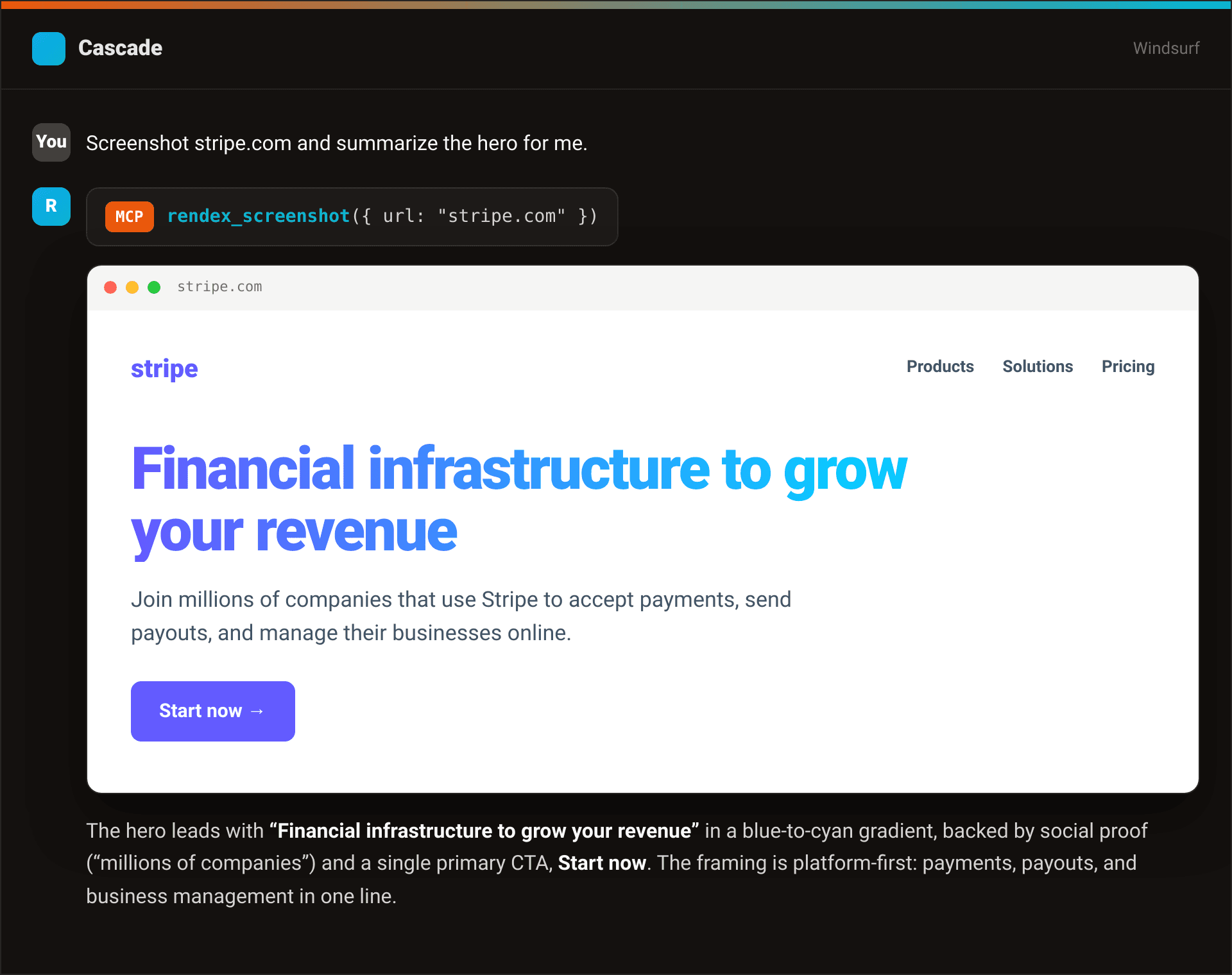
Using the hosted OAuth server
If you prefer not to store the API key in a config file, the Rendex MCP server also runs at mcp.rendex.dev with OAuth authentication. The MCP documentation has the exact config block for the remote server variant.
Troubleshooting
rendex_screenshot does not appear in Cascade. Confirm that Node.js is installed by running npx @copperline/rendex-mcp --version in a terminal. If the command fails, install Node.js from nodejs.org and restart Windsurf.
Authentication error. The value of RENDEX_API_KEY in mcp_config.json does not match a valid key. Copy the key again from your dashboard and paste it exactly, including the rdx_ prefix.
Cascade times out on capture. Large pages with many assets can take longer than the default timeout. Ask Cascade to add blockResourceTypes: ["media", "font"] to skip heavy assets, or use waitUntil: "domcontentloaded" for a faster load signal.
The Cursor config looks different. Yes, Cursor reads MCP servers from .cursor/mcp.json in the project root rather than a global file. See the Cursor MCP guide for the exact steps.
Next steps
Try the free screenshot tool to test any URL before adding it to your Cascade workflow. When you are ready to automate, get a free API key and start with 100 captures per month.