Add Web Screenshots to Claude Code via MCP
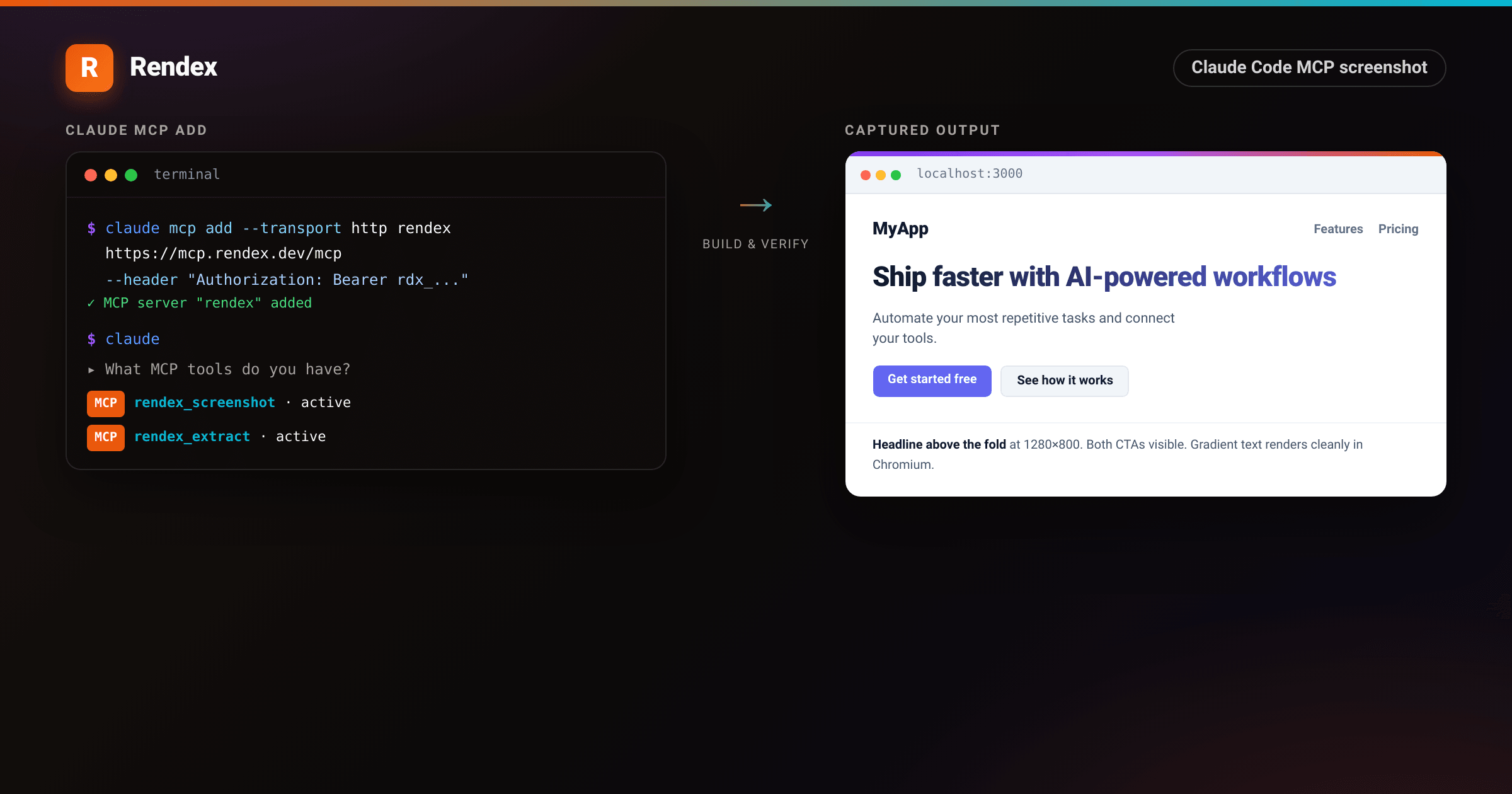
Claude Code builds your UI, writes your tests, and edits your files. What it cannot do on its own is open a browser and see how the page actually renders. A layout bug, a broken OG image, a loading spinner that never disappears: these are visible problems that stay invisible to the agent unless you give it a rendering tool. The Model Context Protocol closes that gap. Add the Rendex MCP server and Claude Code gains rendex_screenshot, which it can call on its own to capture any URL, HTML string, or Markdown document as a PNG, JPEG, WebP, or PDF.
Prerequisites
- Claude Code installed (the
claudeCLI, any recent version). - Node.js on your machine, so Claude Code can run the local MCP server with
npx(only needed for the stdio approach below, not for the remote server). - A Rendex API key. The free tier gives you 100 renders per month with no credit card.
Step 1: Get a Rendex API key
Sign in at rendex.dev/login, open the dashboard, and copy your key. It starts with rdx_. Keep it out of version control and out of commits.
Step 2: Add the remote server
The fastest setup connects Claude Code directly to mcp.rendex.dev over HTTP. No package to install, no Node.js subprocess to manage. Run this once and the tool is available in every future Claude Code session:
claude mcp add --transport http rendex https://mcp.rendex.dev/mcp \
  --header "Authorization: Bearer rdx_YOUR_KEY"
Replace rdx_YOUR_KEY with your actual key. The --header flag sends the Authorization header on every request. Claude Code stores the entry in its MCP config, so you do not repeat the command.
To scope the server to one project instead of globally, add --scope project. This writes the entry into .mcp.json in the project root rather than your user config. Add .mcp.json to .gitignore before committing.
Step 3: Or use a local stdio server
If you want to keep the API key in an environment variable rather than a header string, run the MCP package locally:
claude mcp add rendex -e RENDEX_API_KEY=rdx_YOUR_KEY -- npx -y @copperline/rendex-mcpClaude Code will start the npx process in the background each session. Node.js must be on your PATH. Run node --version to confirm before using this approach.
Step 4: Verify the tool is registered
After adding the server, ask Claude Code what tools it has:
What MCP tools do you have?Claude Code should list rendex_screenshot along with a short description of its parameters. You can also run claude mcp list in a terminal to see every configured server and its status.
Step 5: Screenshot a page you just built
The most useful workflow for front-end work is the build-and-verify loop. Start your dev server, then ask Claude Code to check the result:
Start the dev server on port 3000, then screenshot http://localhost:3000 and describe the layout.

I just changed the hero component. Screenshot http://localhost:3000 at 1440px wide and tell me if the headline is above the fold.

Screenshot http://localhost:3000/og-image?title=Hello+World and check whether the OG card matches the design.
Claude Code calls rendex_screenshot with the URL and any viewport parameters it infers from context. The image comes back inline and Claude Code can describe exactly what it sees, flag layout problems, and then propose edits.
<!DOCTYPE html>
<html lang="en">
<head>
<meta charset="utf-8">
<style>
:root { --brand: #ea580c; --brand-2: #06b6d4; --claude: #7c3aed; }
* { box-sizing: border-box; margin: 0; padding: 0; }
body { width: 1200px; height: 800px; background: #0c0a09; }
.panel {
width: 1200px; height: 800px; display: flex; flex-direction: column;
background: #0e0c0b; border: 1px solid rgba(255,255,255,0.07);
font-family: ui-monospace, SFMono-Regular, Menlo, "Cascadia Code", Consolas, monospace;
-webkit-font-smoothing: antialiased; color: #e7e5e4;
}
/* Terminal header */
.bar { height: 5px; background: linear-gradient(90deg, var(--claude), #a855f7, var(--brand)); }
.head {
display: flex; align-items: center; gap: 10px; padding: 12px 20px;
border-bottom: 1px solid rgba(255,255,255,0.06); background: #0c0a09;
}
.dots { display: flex; gap: 7px; }
.dots i { width: 11px; height: 11px; border-radius: 50%; }
.dots i:nth-child(1){ background: #ff5f56; }
.dots i:nth-child(2){ background: #ffbd2e; }
.dots i:nth-child(3){ background: #27c93f; }
.head .title { margin-left: 10px; font-size: 12px; color: #78716c; font-family: -apple-system, BlinkMacSystemFont, "Segoe UI", sans-serif; }
.head .badge { margin-left: auto; font-size: 11px; color: #fafaf9;
background: linear-gradient(135deg, var(--claude), #a855f7);
padding: 3px 9px; border-radius: 999px; font-family: -apple-system, sans-serif; font-weight: 700; }
/* Terminal body */
.body { flex: 1; overflow: hidden; display: flex; flex-direction: column; padding: 16px 20px; gap: 14px; }
.prompt { display: flex; align-items: flex-start; gap: 10px; }
.ps1 { color: #a855f7; font-weight: 700; font-size: 14px; flex: none; padding-top: 1px; }
.cmd { font-size: 14px; color: #e7e5e4; line-height: 1.5; }
.cmd .kw { color: #58a6ff; }
.cmd .str { color: #a5d6ff; }
.cmd .flag { color: #7dd3fc; }
.divider { border: none; border-top: 1px solid rgba(255,255,255,0.06); margin: 0; }
/* Agent turn */
.agent-turn { display: flex; flex-direction: column; gap: 10px; }
.user-msg { display: flex; gap: 10px; align-items: flex-start; }
.user-icon { width: 24px; height: 24px; border-radius: 6px; background: #44403c; flex: none;
display: flex; align-items: center; justify-content: center; font-size: 11px; font-weight: 700;
color: #fafaf9; font-family: -apple-system, sans-serif; }
.user-text { font-size: 14px; color: #fafaf9; line-height: 1.5; padding-top: 2px; font-family: -apple-system, BlinkMacSystemFont, "Segoe UI", sans-serif; }
.tool-row { display: flex; align-items: center; gap: 9px; font-size: 13px;
background: rgba(255,255,255,0.03); border: 1px solid rgba(255,255,255,0.08);
border-radius: 8px; padding: 9px 13px; }
.chip { font-weight: 700; color: #fff; background: var(--brand); padding: 2px 7px; border-radius: 5px; font-size: 11px; font-family: -apple-system, sans-serif; }
.fn { color: var(--brand-2); font-weight: 700; }
.arg { color: #a8a29e; }
/* Captured page preview */
.shot { border-radius: 10px; overflow: hidden; box-shadow: 0 14px 36px rgba(0,0,0,0.55);
border: 1px solid rgba(255,255,255,0.08); max-width: 700px; }
.sc { display: flex; align-items: center; gap: 6px; padding: 8px 12px; background: #f5f5f4; }
.sc i { width: 9px; height: 9px; border-radius: 50%; }
.sc i:nth-child(1){ background:#ff5f56; } .sc i:nth-child(2){ background:#ffbd2e; } .sc i:nth-child(3){ background:#27c93f; }
.sc .url { margin-left: 5px; font-size: 10px; color: #78716c; }
/* Sample Next.js-style landing page */
.page-hero { background: #fff; color: #0f172a; padding: 22px 28px 28px; }
.page-hero nav { display: flex; align-items: center; gap: 16px; font-size: 12px; font-weight: 600; color: #64748b; margin-bottom: 28px; font-family: -apple-system, sans-serif; }
.page-hero nav .logo { font-size: 17px; font-weight: 800; color: #0f172a; margin-right: auto; }
.page-hero h1 { font-size: 34px; line-height: 1.1; letter-spacing: -1px; font-weight: 800; color: #0f172a; margin-bottom: 12px; font-family: -apple-system, sans-serif;
background: linear-gradient(90deg, #0f172a, #6366f1); -webkit-background-clip: text; background-clip: text; color: transparent; }
.page-hero p { font-size: 15px; color: #475569; line-height: 1.55; max-width: 480px; margin-bottom: 18px; font-family: -apple-system, sans-serif; }
.page-hero .btns { display: flex; gap: 10px; }
.page-hero .b1 { background: #6366f1; color: #fff; font-size: 13px; font-weight: 700; padding: 9px 18px; border-radius: 7px; font-family: -apple-system, sans-serif; }
.page-hero .b2 { background: #f1f5f9; color: #0f172a; font-size: 13px; font-weight: 700; padding: 9px 18px; border-radius: 7px; font-family: -apple-system, sans-serif; border: 1px solid #e2e8f0; }
/* Analysis text */
.analysis { font-size: 14px; line-height: 1.65; color: #d6d3d1; font-family: -apple-system, BlinkMacSystemFont, "Segoe UI", sans-serif; max-width: 700px; }
.analysis b { color: #fafaf9; }
</style>
</head>
<body>
<div class="panel">
<div class="bar"></div>
<div class="head">
<div class="dots"><i></i><i></i><i></i></div>
<div class="title">claude — project root</div>
<div class="badge">rendex active</div>
</div>
<div class="body">
<div class="prompt">
<span class="ps1">$</span>
<span class="cmd"><span class="kw">claude</span> <span class="flag">mcp add</span> <span class="flag">--transport</span> http rendex https://mcp.rendex.dev/mcp <span class="flag">--header</span> <span class="str">"Authorization: Bearer rdx_..."</span></span>
</div>
<div class="agent-turn">
<div class="user-msg">
<div class="user-icon">You</div>
<div class="user-text">Screenshot http://localhost:3000 and tell me if the hero headline is above the fold.</div>
</div>
<div class="tool-row">
<span class="chip">MCP</span>
<span><span class="fn">rendex_screenshot</span>(<span class="arg">{ url: "http://localhost:3000", width: 1280, height: 800 }</span>)</span>
</div>
<div class="shot">
<div class="sc"><i></i><i></i><i></i><span class="url">localhost:3000</span></div>
<div class="page-hero">
<nav><span class="logo">MyApp</span><span>Features</span><span>Pricing</span><span>Docs</span></nav>
<h1>Ship faster with AI-powered workflows</h1>
<p>Automate your most repetitive tasks. Connect your tools and let the pipeline handle the rest.</p>
<div class="btns"><span class="b1">Get started free</span><span class="b2">See how it works</span></div>
</div>
</div>
<div class="analysis">
The headline <b>“Ship faster with AI-powered workflows”</b> is fully visible at 1280x800. Both CTAs sit below the fold on mobile viewports below 768px. The gradient text on the h1 renders cleanly in Chromium. Layout looks good.
</div>
</div>
</div>
</div>
</body>
</html>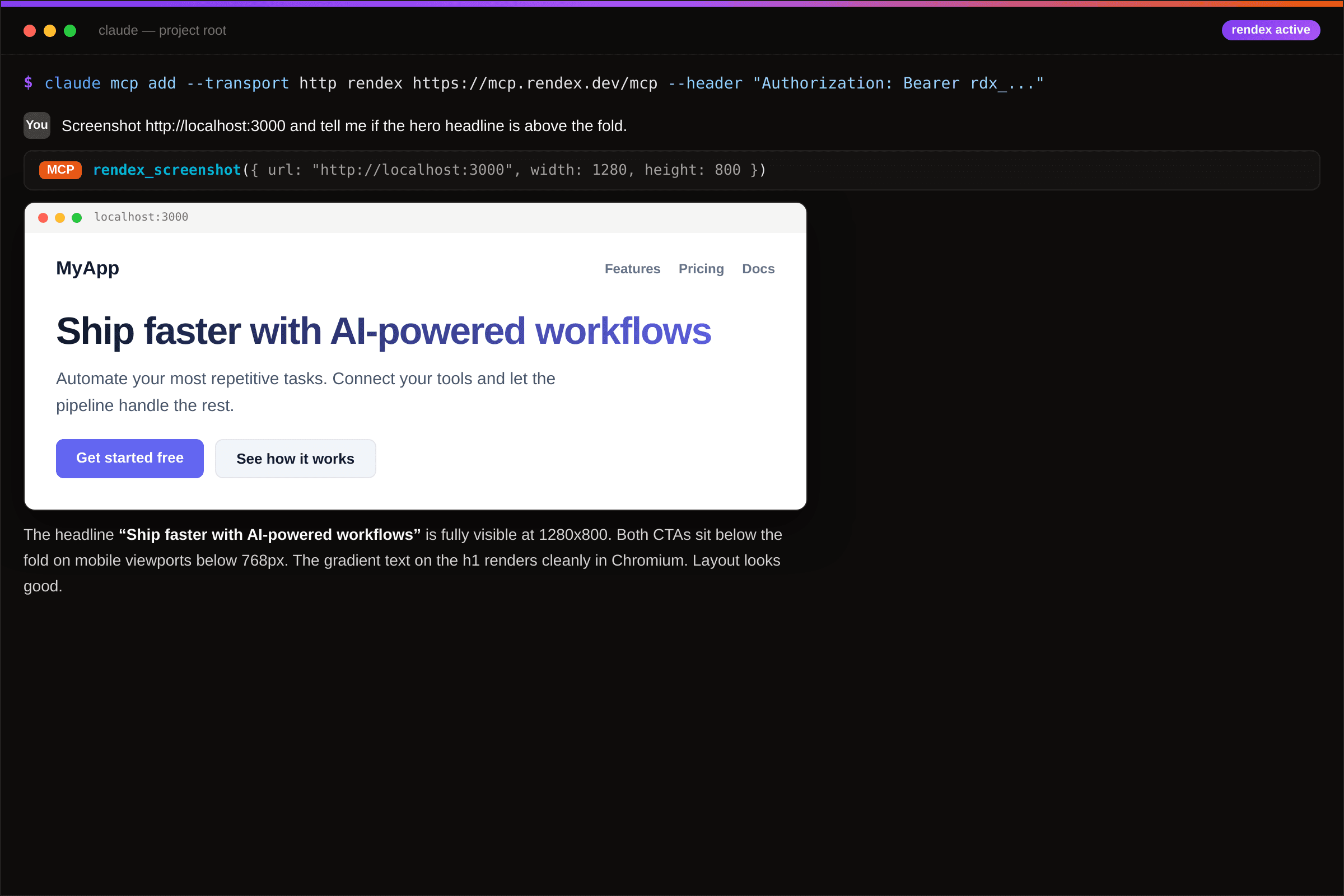
Step 6: Generate a PDF from your agent
The same tool handles PDF output. If your app generates reports, invoices, or documents, Claude Code can render them and verify the output without leaving the editor:
Render http://localhost:3000/invoice/123 as an A4 PDF and check whether the totals line up correctly.

Take the following HTML template and render it to a Letter PDF:
<html>...</html>

Screenshot https://example.com/dashboard as a full-page PNG and a PDF for comparison.
Supported PDF page sizes via the pdfFormat parameter: A4, Letter, Legal, Tabloid, A3. The rendered PDF comes back for download. The MCP docs cover margins, landscape mode, and scale options.
Troubleshooting
rendex_screenshot is not listed after adding the server. Run claude mcp list and confirm the rendex entry appears. If it does not, re-run the claude mcp add command from Step 2 or 3. Then start a new Claude Code session: MCP servers connect at session startup, not mid-session.
401 Unauthorized. The Authorization header value must include the Bearer prefix with a space before the key. Keys start with rdx_ and contain no spaces. Copy the key directly from the Rendex dashboard.
Blank or cut-off screenshot of a local dev server. The dev server may not be running, or the page requires JavaScript to render content. Ask Claude Code to wait for the page to load: "Screenshot localhost:3000 and wait for the .hero-section to appear before capturing." Claude passes waitForSelector to the tool.
npx fails with "command not found". Node.js is not on the PATH that Claude Code uses. Install Node.js from nodejs.org and restart Claude Code. Or switch to the remote HTTP server (Step 2) to skip the Node.js dependency entirely.
Next steps
The MCP reference covers the full parameter list: device presets (iphone_15, ipad), dark mode, selector capture for specific components, and geo-targeted renders for testing localized pages. To test any URL before wiring Claude Code into your workflow, the free screenshot tool gives you instant output with no setup. If you are weighing a rendering API against self-managed Playwright or Puppeteer for your agent architecture, the rendering APIs for AI agents comparison breaks down the tradeoffs honestly. Building or configuring a hosted client instead of a local one? See using a remote MCP server for the OAuth and API-key connection paths.
To get started, get your free API key (100 renders/month, no credit card), run the claude mcp add command, and ask Claude Code to screenshot your next build.