Add Screenshot and PDF Tools to Claude Desktop via MCP
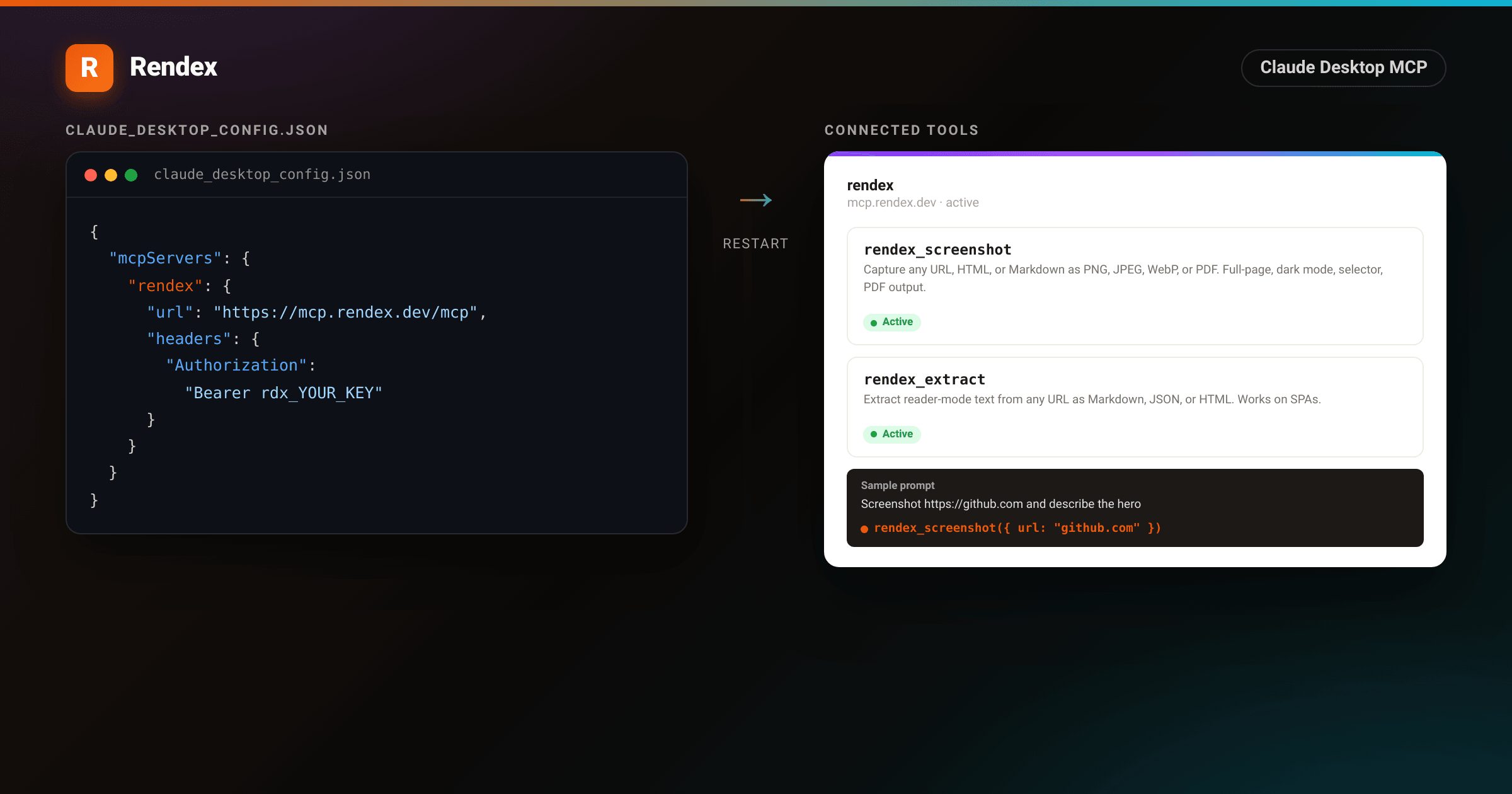
Claude Desktop can read local files and run tools, but it cannot open a browser tab and see what a live page actually looks like. The Model Context Protocol fixes that gap. Connect the Rendex MCP server and Claude gains three tools it can call on its own: rendex_screenshot for capturing URLs, HTML, or Markdown as PNG, JPEG, WebP, or PDF; rendex_extract for pulling reader-mode text from any page; and render_artifact for turning Markdown or HTML into a branded PDF plus a hosted share page in one call.
Prerequisites
- Claude Desktop installed (any recent version with MCP support).
- A Rendex API key. The free tier includes 100 renders per month with no credit card required.
- For the remote server approach: nothing else. For the local server approach: Node.js 18+ on your PATH.
Step 1: Get a Rendex API key
Sign in at rendex.dev/login, open the dashboard, and copy your key. It starts with rdx_. Keep it out of version control. The free plan gives you 100 renders per month. Cookie and header injection require Starter or above; geo-targeting requires Pro or Enterprise.
Step 2: Add the remote server
The recommended setup connects Claude Desktop to mcp.rendex.dev over HTTP. No Node.js needed, no package to install. Find your config file:
- macOS:
~/Library/Application Support/Claude/claude_desktop_config.json - Windows:
%APPDATA%\Claude\claude_desktop_config.json - Linux:
~/.config/claude/claude_desktop_config.json
Open the file (create it if it does not exist) and add the rendex block:
{
  "mcpServers": {
    "rendex": {
      "url": "https://mcp.rendex.dev/mcp",
      "headers": {
        "Authorization": "Bearer rdx_YOUR_KEY"
      }
    }
  }
}
Replace rdx_YOUR_KEY with your actual key from the dashboard. If the file already has other servers, add the rendex entry inside the existing mcpServers object.
Step 3: Or run a local server
If you prefer to keep your key in a local environment variable and avoid the remote HTTP connection, run the package locally via npx. Use this config instead:
{
  "mcpServers": {
    "rendex": {
      "command": "npx",
      "args": ["-y", "@copperline/rendex-mcp"],
      "env": {
        "RENDEX_API_KEY": "rdx_YOUR_KEY"
      }
    }
  }
}
The -y flag downloads and runs @copperline/rendex-mcp on first launch without a confirmation prompt. Node.js must be on the PATH that Claude Desktop sees. Run node --version in a terminal to confirm.
Step 4: Restart and verify
Quit Claude Desktop completely and reopen it. A partial close is not enough: Claude reads the config file only at startup. After restart, open the Connected Tools panel (the plug icon in the sidebar) and confirm that rendex appears with a green active indicator. Ask Claude: What MCP tools do you have? It should list rendex_screenshot, rendex_extract, and render_artifact.
Step 5: Capture a screenshot
Once the tools are registered, describe what you want in plain language. Claude translates the request into a tool call and returns the captured image inline:
Screenshot https://github.com and tell me about the hero section.

Capture https://example.com/pricing at 1440px wide and flag any layout issues.

Take a full-page screenshot of https://docs.example.com/guide.
Claude calls rendex_screenshot with the URL and any parameters it infers from context. The default viewport is 1280x800. The captured image comes back inline, and Claude can describe, compare, or analyze it from what it actually sees.
<!DOCTYPE html>
<html lang="en">
<head>
<meta charset="utf-8">
<style>
:root { --brand: #ea580c; --brand-2: #06b6d4; --claude: #7c3aed; }
* { box-sizing: border-box; margin: 0; padding: 0; }
body { width: 1200px; height: 800px; background: #0c0a09; }
.panel {
width: 1200px; height: 800px; display: flex; flex-direction: column;
background: #14110f; border: 1px solid rgba(255,255,255,0.08);
font-family: -apple-system, BlinkMacSystemFont, "Segoe UI", Roboto, Helvetica, Arial, sans-serif;
-webkit-font-smoothing: antialiased; color: #e7e5e4;
}
.bar { height: 5px; background: linear-gradient(90deg, var(--claude), #a855f7, var(--brand-2)); }
.head {
display: flex; align-items: center; gap: 10px; padding: 14px 22px;
border-bottom: 1px solid rgba(255,255,255,0.07); background: #100e0c;
}
.head .dot { width: 28px; height: 28px; border-radius: 8px;
background: linear-gradient(135deg, var(--claude), #a855f7);
display: flex; align-items: center; justify-content: center; font-weight: 800; font-size: 15px; color: #fff; }
.head .t { font-weight: 700; font-size: 16px; color: #fafaf9; }
.head .sub { margin-left: auto; font-size: 12px; color: #78716c;
border: 1px solid rgba(255,255,255,0.12); padding: 4px 10px; border-radius: 6px; }
.body { padding: 22px 24px; display: flex; flex-direction: column; gap: 18px; flex: 1; overflow: hidden; }
.msg { display: flex; gap: 12px; }
.who { width: 28px; height: 28px; border-radius: 7px; flex: none; display: flex; align-items: center; justify-content: center; font-weight: 800; font-size: 12px; color: #fff; }
.who.u { background: #44403c; }
.who.a { background: linear-gradient(135deg, var(--claude), #a855f7); }
.bubble { font-size: 15px; line-height: 1.55; padding-top: 3px; flex: 1; }
.bubble.user { color: #fafaf9; }
.toolcall {
display: inline-flex; align-items: center; gap: 9px;
font-family: ui-monospace, SFMono-Regular, Menlo, monospace;
font-size: 13px; color: #d6d3d1; background: rgba(255,255,255,0.04);
border: 1px solid rgba(255,255,255,0.10); border-radius: 9px; padding: 9px 13px; margin-bottom: 12px;
}
.toolcall .chip { font-weight: 700; color: #fff; background: var(--brand); padding: 2px 7px; border-radius: 5px; font-size: 11px; }
.toolcall .fn { color: var(--brand-2); font-weight: 700; }
.toolcall .arg { color: #a8a29e; }
.shot { border-radius: 10px; overflow: hidden; box-shadow: 0 16px 40px rgba(0,0,0,0.55); border: 1px solid rgba(255,255,255,0.08); margin-bottom: 13px; max-width: 680px; }
.shot .sc { display: flex; align-items: center; gap: 6px; padding: 8px 12px; background: #f5f5f4; }
.shot .sc i { width: 9px; height: 9px; border-radius: 50%; }
.shot .sc i:nth-child(1){ background:#ff5f56 } .shot .sc i:nth-child(2){ background:#ffbd2e } .shot .sc i:nth-child(3){ background:#27c93f }
.shot .sc .a { margin-left: 5px; font-family: ui-monospace, monospace; font-size: 10px; color: #78716c; }
/* GitHub-style hero */
.gh { background: #0d1117; color: #e6edf3; padding: 26px 30px 32px; }
.gh .nav { display: flex; align-items: center; gap: 18px; font-size: 12px; color: #7d8590; font-weight: 600; margin-bottom: 32px; }
.gh .nav .logo { display: flex; align-items: center; gap: 8px; font-size: 16px; font-weight: 800; color: #e6edf3; margin-right: auto; }
.gh .nav .logo svg { width: 20px; height: 20px; fill: #e6edf3; }
.gh h1 { font-size: 36px; line-height: 1.1; letter-spacing: -1px; font-weight: 800; color: #e6edf3; margin-bottom: 14px; }
.gh p { font-size: 16px; color: #7d8590; line-height: 1.5; max-width: 500px; margin-bottom: 20px; }
.gh .btns { display: flex; gap: 10px; }
.gh .btns .b1 { background: #238636; color: #fff; font-size: 14px; font-weight: 600; padding: 9px 20px; border-radius: 6px; }
.gh .btns .b2 { background: #21262d; color: #e6edf3; font-size: 14px; font-weight: 600; padding: 9px 20px; border-radius: 6px; border: 1px solid rgba(240,246,252,0.1); }
.analysis { font-size: 14.5px; line-height: 1.65; color: #d6d3d1; max-width: 680px; }
.analysis b { color: #fafaf9; }
</style>
</head>
<body>
<div class="panel">
<div class="bar"></div>
<div class="head">
<div class="dot">C</div>
<div class="t">Claude Desktop</div>
<div class="sub">Connected Tools: rendex</div>
</div>
<div class="body">
<div class="msg">
<div class="who u">You</div>
<div class="bubble user">Screenshot https://github.com and tell me about the hero section.</div>
</div>
<div class="msg">
<div class="who a">C</div>
<div class="bubble">
<div class="toolcall">
<span class="chip">MCP</span>
<span><span class="fn">rendex_screenshot</span>(<span class="arg">{ url: "github.com", width: 1280 }</span>)</span>
</div>
<div class="shot">
<div class="sc"><i></i><i></i><i></i><span class="a">github.com</span></div>
<div class="gh">
<div class="nav">
<span class="logo">
<svg viewBox="0 0 16 16" aria-hidden="true"><path d="M8 0C3.58 0 0 3.58 0 8c0 3.54 2.29 6.53 5.47 7.59.4.07.55-.17.55-.38 0-.19-.01-.82-.01-1.49-2.01.37-2.53-.49-2.69-.94-.09-.23-.48-.94-.82-1.13-.28-.15-.68-.52-.01-.53.63-.01 1.08.58 1.23.82.72 1.21 1.87.87 2.33.66.07-.52.28-.87.51-1.07-1.78-.2-3.64-.89-3.64-3.95 0-.87.31-1.59.82-2.15-.08-.2-.36-1.02.08-2.12 0 0 .67-.21 2.2.82.64-.18 1.32-.27 2-.27.68 0 1.36.09 2 .27 1.53-1.04 2.2-.82 2.2-.82.44 1.1.16 1.92.08 2.12.51.56.82 1.27.82 2.15 0 3.07-1.87 3.75-3.65 3.95.29.25.54.73.54 1.48 0 1.07-.01 1.93-.01 2.2 0 .21.15.46.55.38A8.013 8.013 0 0016 8c0-4.42-3.58-8-8-8z"/></svg>
GitHub
</span>
<span>Product</span><span>Solutions</span><span>Open Source</span><span>Pricing</span>
</div>
<h1>Let's build from here</h1>
<p>The world's leading AI-powered developer platform. Build, scale, and deliver secure software.</p>
<div class="btns">
<span class="b1">Sign up for free</span>
<span class="b2">Try GitHub Copilot</span>
</div>
</div>
</div>
<div class="analysis">
The hero leads with <b>“Let’s build from here”</b> in large bold type on a dark background. The subheading positions GitHub as an <b>AI-powered developer platform</b> focused on security and scale. Two CTAs: a green <b>Sign up for free</b> (primary) and a neutral <b>Try GitHub Copilot</b> (secondary), both above the fold.
</div>
</div>
</div>
</div>
</div>
</body>
</html>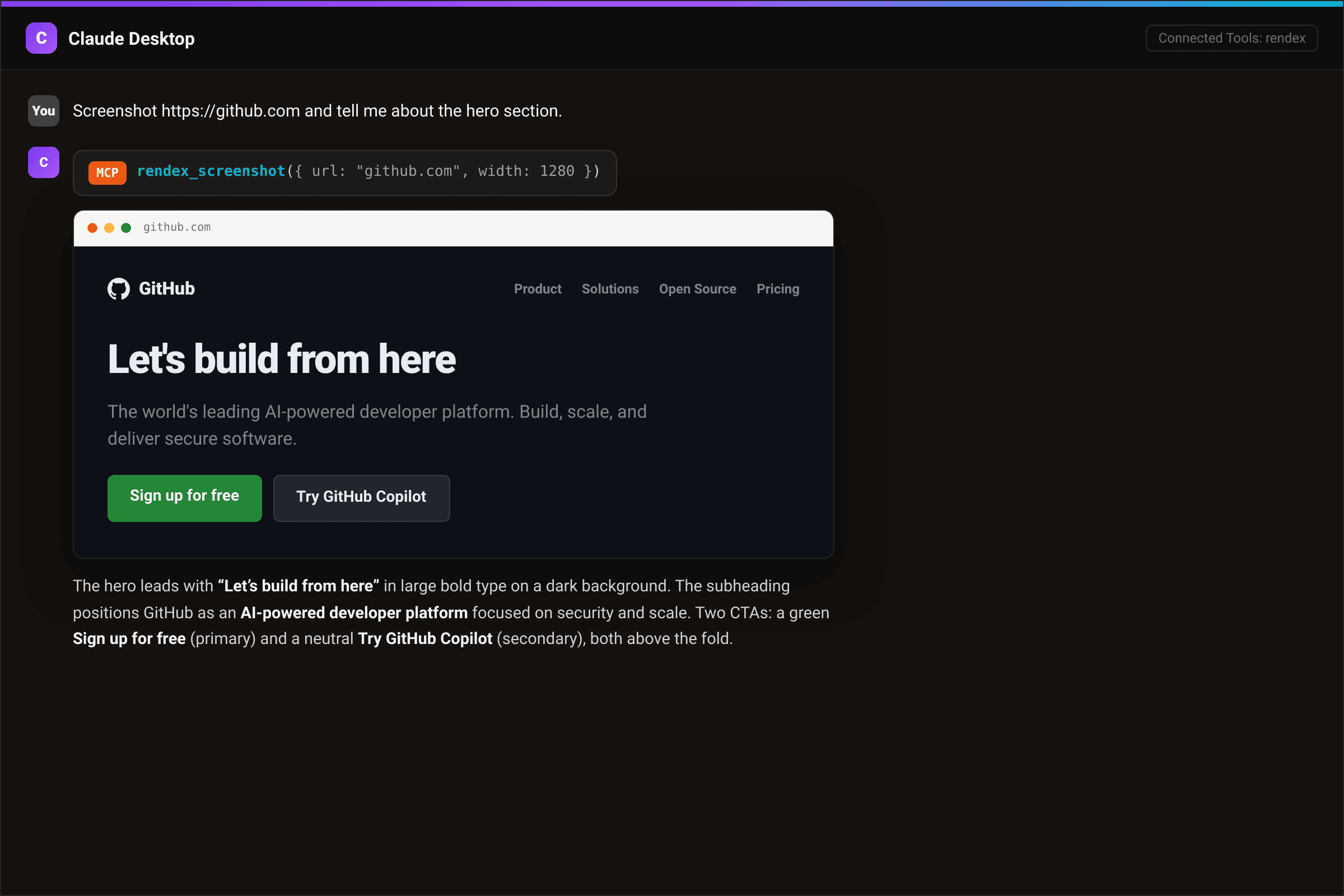
Step 6: Generate a PDF
Ask Claude to render a URL or HTML content as a PDF. Specify the page format in your prompt and Claude passes format: "pdf" to the tool:
Save https://example.com/report as a PDF using A4 paper size.

Convert this HTML invoice to a PDF and download it:
<html>...</html>

Render https://blog.example.com/post as a full-page PDF.
Supported PDF page sizes: A4, Letter, Legal, Tabloid, A3. Claude returns the rendered PDF for download. For templated documents where you pass data into placeholders, the render_artifact tool combines the render with a hosted share link in one step. See the MCP docs for the full parameter list.
Step 7: Extract text from a page
rendex_extract runs a full browser render pass and returns the page content in reader mode, stripping navigation, ads, and boilerplate. Useful when you want Claude to summarize, quote, or fact-check an article:
Extract the main article text from https://techcrunch.com/2026/08/01/example and summarize the key points.

Pull the content from https://docs.example.com/api as Markdown and list every endpoint it mentions.

Get the JSON structure from https://example.com/data-page.
The extractFormat parameter controls the output shape: markdown (default), json, or html. Claude picks the right format automatically or you can specify it in your prompt.
Troubleshooting
Tools not listed after restart. The config file must be valid JSON. A trailing comma after the last key or a missing brace causes Claude to skip loading MCP servers entirely, with no error message. Paste the file contents into a JSON validator before restarting. Then quit Claude fully (check the system tray on Windows and macOS menu bar) before reopening.
401 Unauthorized. The Authorization header is missing the Bearer prefix (with a space), or the key value is wrong. Keys start with rdx_ and contain no spaces. Copy the key directly from the Rendex dashboard and paste it without modification. If you are using the local npx config, check that RENDEX_API_KEY is spelled exactly as shown.
Blank or cut-off screenshot.The page renders content via JavaScript after the initial load. Ask Claude to add a wait condition: for example, "wait for the main content to load before capturing." Claude will pass waitForSelector or delay to the tool. For SPAs, waitForSelector targeting a main content element is more reliable than a fixed delay.
npx fails or server not found. Confirm Node.js is accessible from the terminal Claude Desktop uses. Run node --version in a new terminal window. If the command is not found, install Node.js from nodejs.org and restart Claude Desktop. On macOS, shell PATH in GUI apps sometimes differs from the terminal: add Node.js to /etc/paths or use the remote server config (Step 2) to avoid the dependency entirely.
Next steps
The MCP docs cover the full parameter reference for all three tools, including async capture, cookie and header injection for authenticated pages, device emulation, and batch options. If you are evaluating whether a hosted rendering API fits your agent architecture versus self-hosted Puppeteer or Playwright, the screenshot API for AI agents comparison breaks down the tradeoffs. To test any URL before adding it to a Claude workflow, the free screenshot tool gives you instant output with no config. For a deeper look at the remote connection method, including OAuth and how it differs from a local stdio server, see using a remote MCP server.
To get started, get your free API key (100 renders/month, no credit card) and add one of the config blocks above to claude_desktop_config.json. The tools appear on the next restart.